Reviewing and approving messages
Work the Proof-read, Approval, and Sender queues, read a message before you decide, and approve, decline, or release it.
If you're assigned as a Proof-reader, Approver, or Sender, messages that need your decision land on the Approvals screen. This page walks through your queue, reading a message before you act, and what approving, declining, and releasing actually do.
Prerequisites
You need a Proof-reader, Approver, or Sender role, assigned in Managing templates and approvers. One person can hold more than one of these roles. See How SMS works in FEMS for how a message reaches you in the first place.
Your queue
Open SMS > Approvals. Three tabs, each a separate stage:
- Proof-read: checks the wording.
- Approval: signs off on the message.
- Sender: releases it.
Each tab's badge shows how many messages are waiting on that stage. A message only shows up in a tab once it reaches that stage, and the same message walks through all three tabs in order as it clears each one. One person holding more than one role, such as a Super Admin, sees the same message land in a later tab once they've cleared the earlier one.
Reading before deciding
Click a message in the list to open it. The right-hand panel shows the message's stage as a three-step tracker (Proof-read, Approval, Sender), who submitted it, the audience, recipient count, when it's scheduled for, the message exactly as recipients will receive it, its character count and segment count, and a short history of what's happened so far.
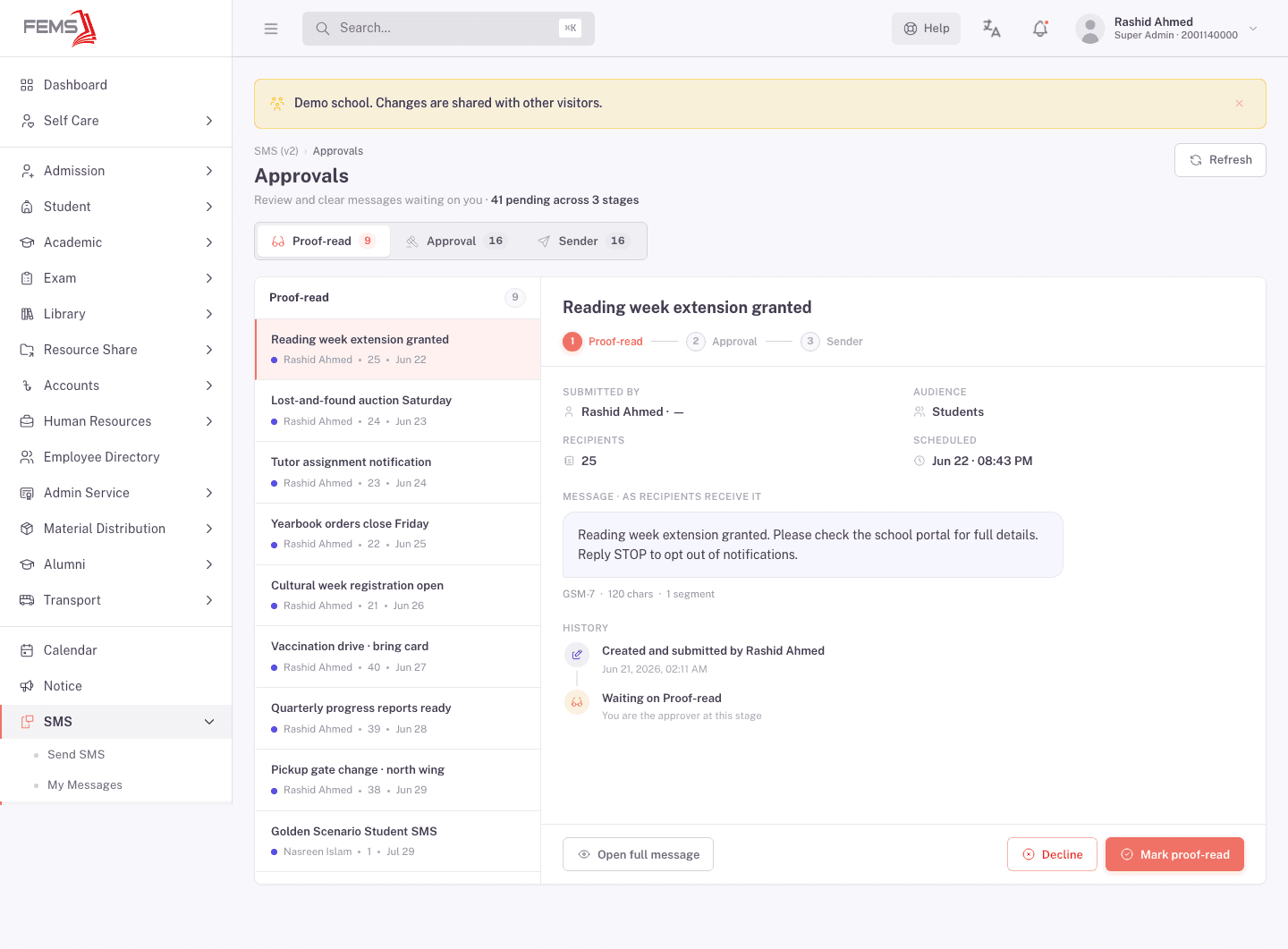
Click Open full message for the same message on its own detail page, with the same Overview, Audience, Recipients, and Audit trail tabs described in Tracking your messages.
Approving
The button that clears a message changes label by stage:
- Proof-read stage: Mark proof-read. Moves the message to Awaiting approver.
- Approval stage: Approve and advance. Moves it to Awaiting send.
- Sender stage: Schedule and send (or the equivalent send-now label, depending on whether the message was scheduled). This is the step that actually reaches phones — see the caution below.
Declining
Click Decline at any stage to open the decline dialog. It asks for a Reason (required, up to 500 characters) before you can confirm.
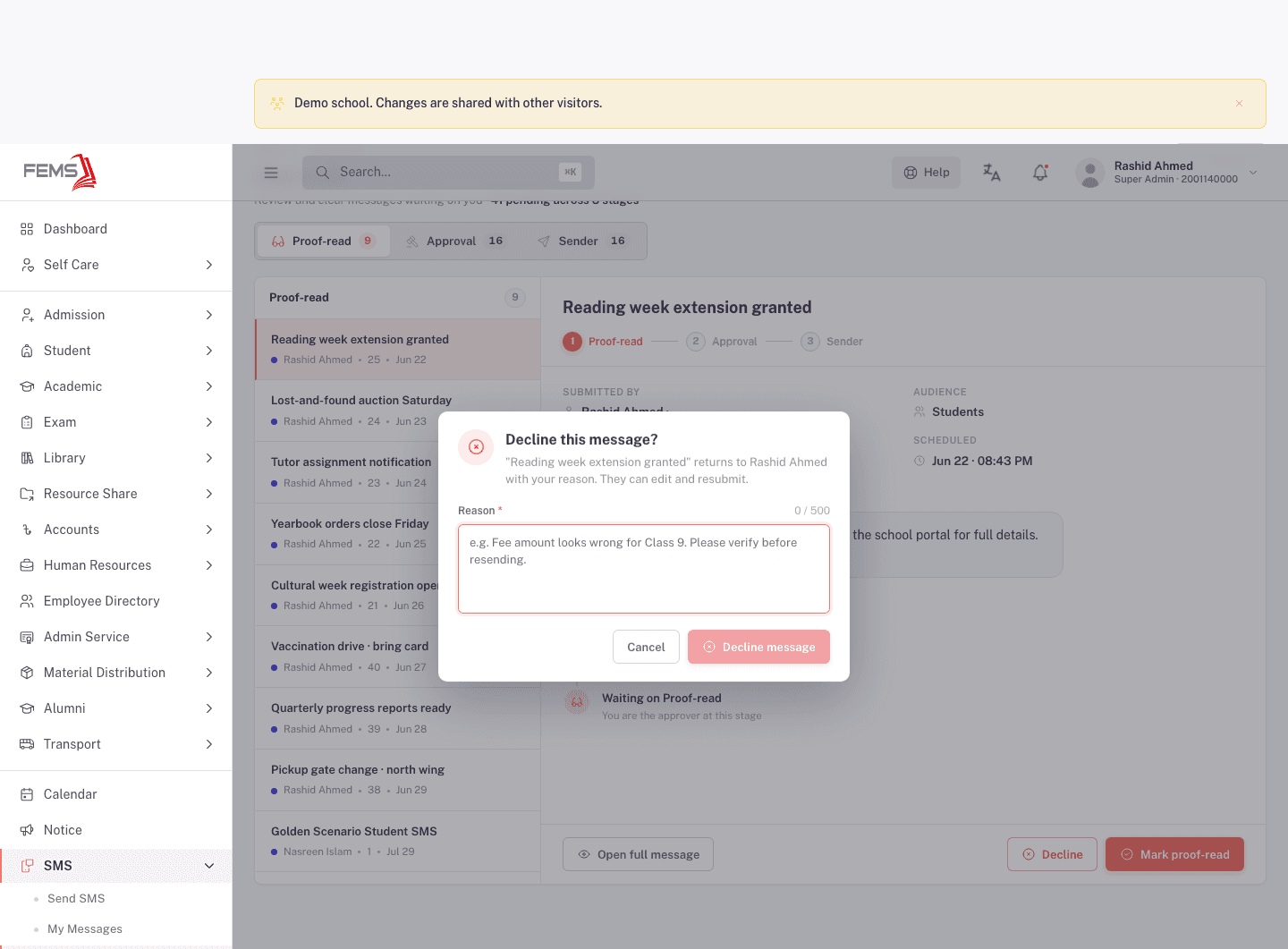
Declining returns the message to its author as Declined, with your reason attached. The author sees an Edit & resend button in place of the usual Edit, and your reason is recorded in the message's audit trail. Editing and resubmitting sends it back to Proof-read, so every stage checks it again. See Tracking your messages for what that looks like from the author's side.
Releasing a send
The Sender stage is the last check, and the only one that has a real-world effect: releasing a message sends it immediately, or queues it to go out automatically at its scheduled time if one was set. There's no undo once it's released. If something's wrong, decline it instead of releasing it.
Audit history
Every message keeps a full history of who did what and when: created, submitted for approval, each reviewer's decision (proof-read, approved, or declined with a reason), and the final release. Open a message's Audit trail tab, from either the Approvals reading panel's Open full message link or from My Messages, to see it. See Tracking your messages for a captured example.
FAQ
Why is my queue empty when a colleague sees the message? Two things have to be true for a message to show in your tab: it has reached that stage, and you hold the role for that stage. If a colleague sees it in Approval, it hasn't reached the Sender stage yet, so it won't show in your Sender queue until they clear it. And if you were never assigned that role in Settings, the queue stays empty no matter what's pending.
Can I fix a typo myself instead of declining? No. Reviewers can approve, decline, or (at the Sender stage) release. To change the wording yourself, decline it with a reason and let the author edit and resubmit, or ask them to make the fix.
Who is told when I decline a message? The author. It returns to them as Declined with your reason attached, visible on the message and in its audit trail.
If I approve, does it send right away? No. Approving at the Proof-read or Approval stage only advances the message to the next queue. It only sends once a Sender releases it, and even then only immediately if no schedule was set.
Watch-outs
Declining and releasing are real actions with real consequences for the author and for recipients. Read the message in full before you decide, especially at the Sender stage, since releasing can't be undone.