Managing templates and approvers
Assign who proof-reads, approves, and sends, and build reusable message templates with per-recipient variables.
The Settings screen has two tabs: Approvers, where you assign who proof-reads, approves, and sends messages, and Templates, where you build the reusable messages your team sends from. This page walks through both.
Prerequisites
You need Settings access to open this screen. See How SMS works in FEMS for what the Proof-reader, Approver, and Sender roles actually do once assigned.
Approvers
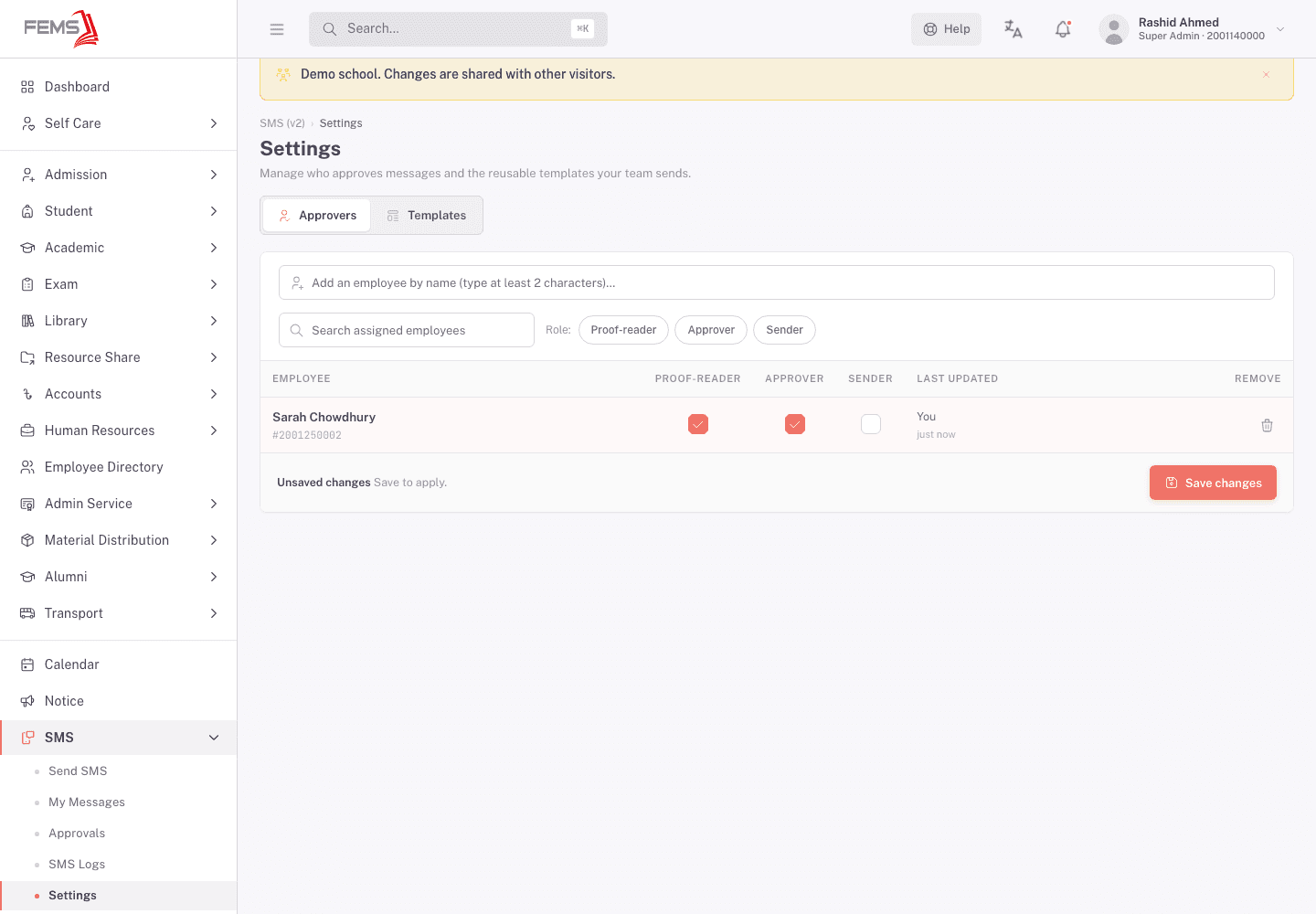
Open SMS > Settings, on the Approvers tab. A table lists every employee currently assigned a review role, with a checkbox column each for Proof-reader, Approver, and Sender, plus Last updated and a Remove icon.
Adding someone
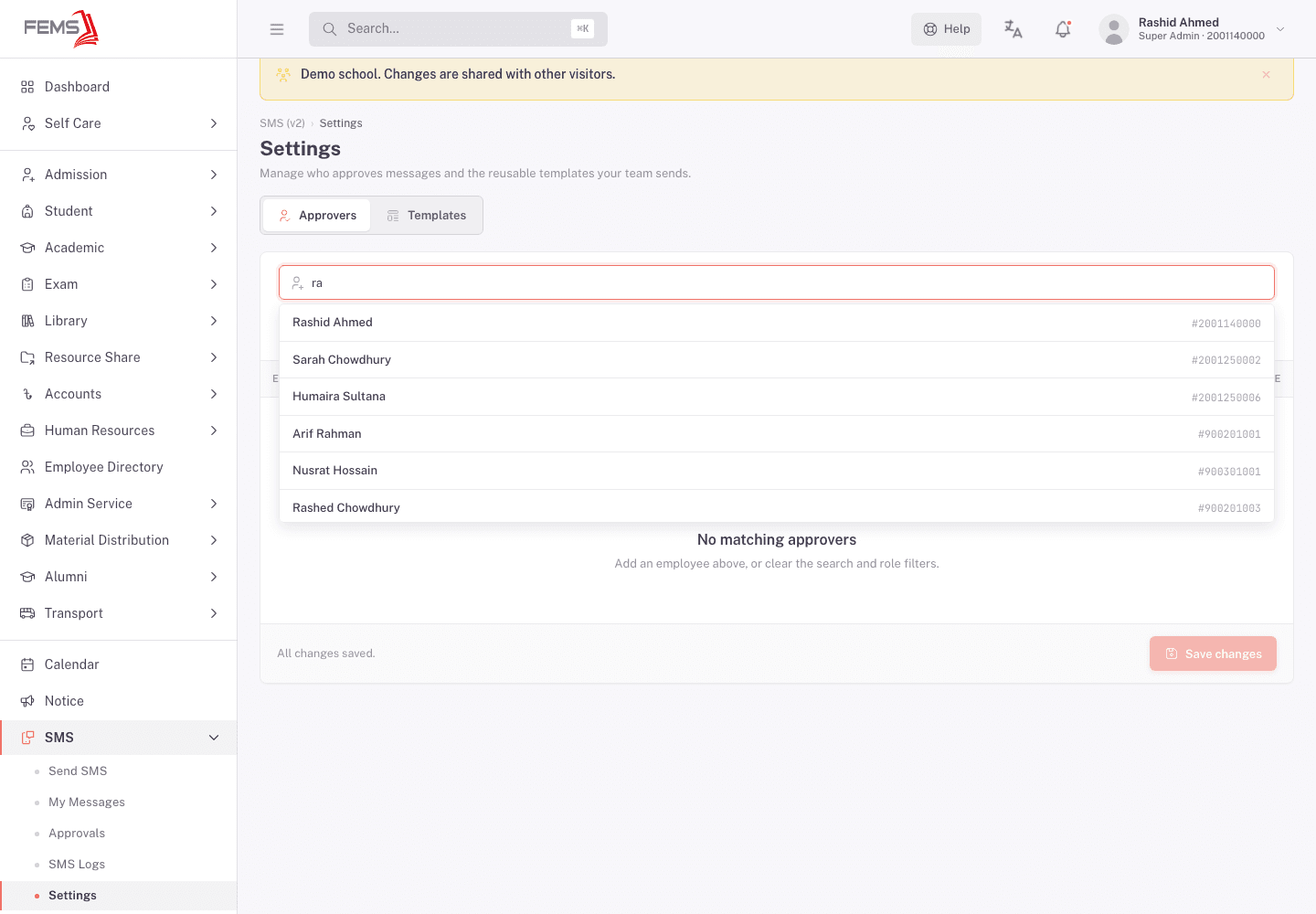
Type at least 2 characters into Add an employee by name to search. Matching employees show name and ID. Click one to add them to the table with all three roles unticked.
Assigning roles
Tick the checkbox under Proof-reader, Approver, or Sender for that employee. One person can hold more than one role, or all three. Nothing takes effect until you save: the bottom bar reads Unsaved changes. Save to apply. until you click Save changes.
Who should hold which role
Pick people for what the role actually asks of them, not just seniority. A proof-reader reads carefully and catches typos or the wrong class name before anyone else sees the message. An approver is accountable for the message going out at all, someone like a vice principal who'd answer for it if a parent complained. A sender is the person your school trusts to pull the trigger: releasing a message reaches phones immediately, with no undo.
Removing someone
Click the trash icon in a row's Remove column, then Save changes. This clears every role they held. Messages already waiting at a stage stay there: anyone else who shares that role can still clear them, but if the person you removed was the only one holding it, nothing moves until you assign that role to someone else (or an admin steps in). Check the role's column before removing its last holder.
Templates
Switch to the Templates tab. The list on the left shows every saved template with its Audience badge (Students, Employees, or Both) and a preview of its opening line. Click one to open it in the editor on the right.
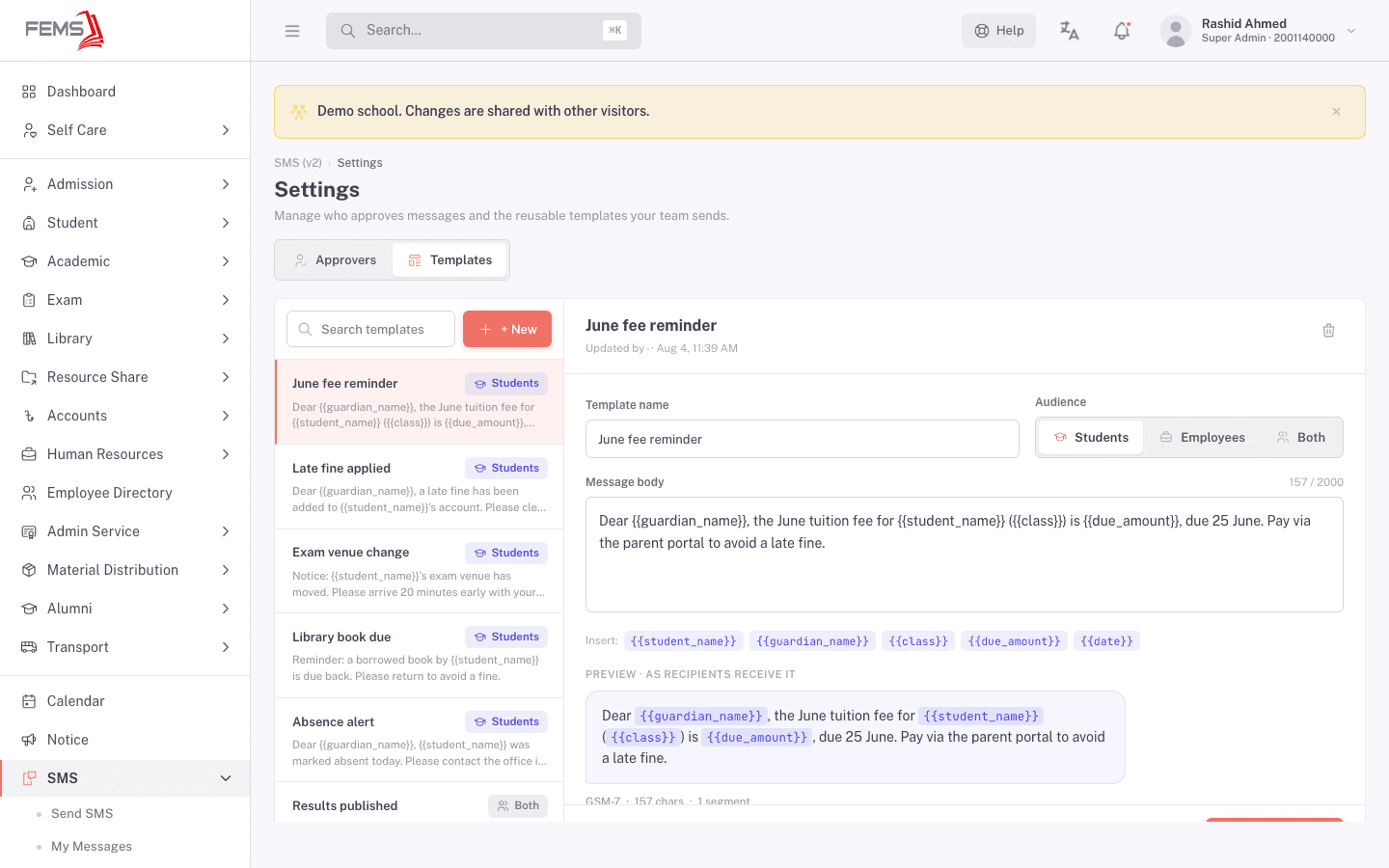
The editor shows:
- Template name, for finding it later in this list and in the Send wizard's template picker.
- Audience: Students, Employees, or Both. This decides which variables are valid (see below).
- Message body, with a character counter (out of 2000).
- Insert chips for the variables available to the chosen audience, for example
{{student_name}},{{guardian_name}},{{class}},{{due_amount}}, and{{date}}for Students. - A live Preview, labeled "as recipients receive it", plus the encoding (GSM-7 or Unicode) and segment count. See Sending an SMS for what segments mean.
Creating a template
Click + New. Give it a name, pick an audience, and write the body using the Insert chips for that audience. The preview and segment counter update as you type.
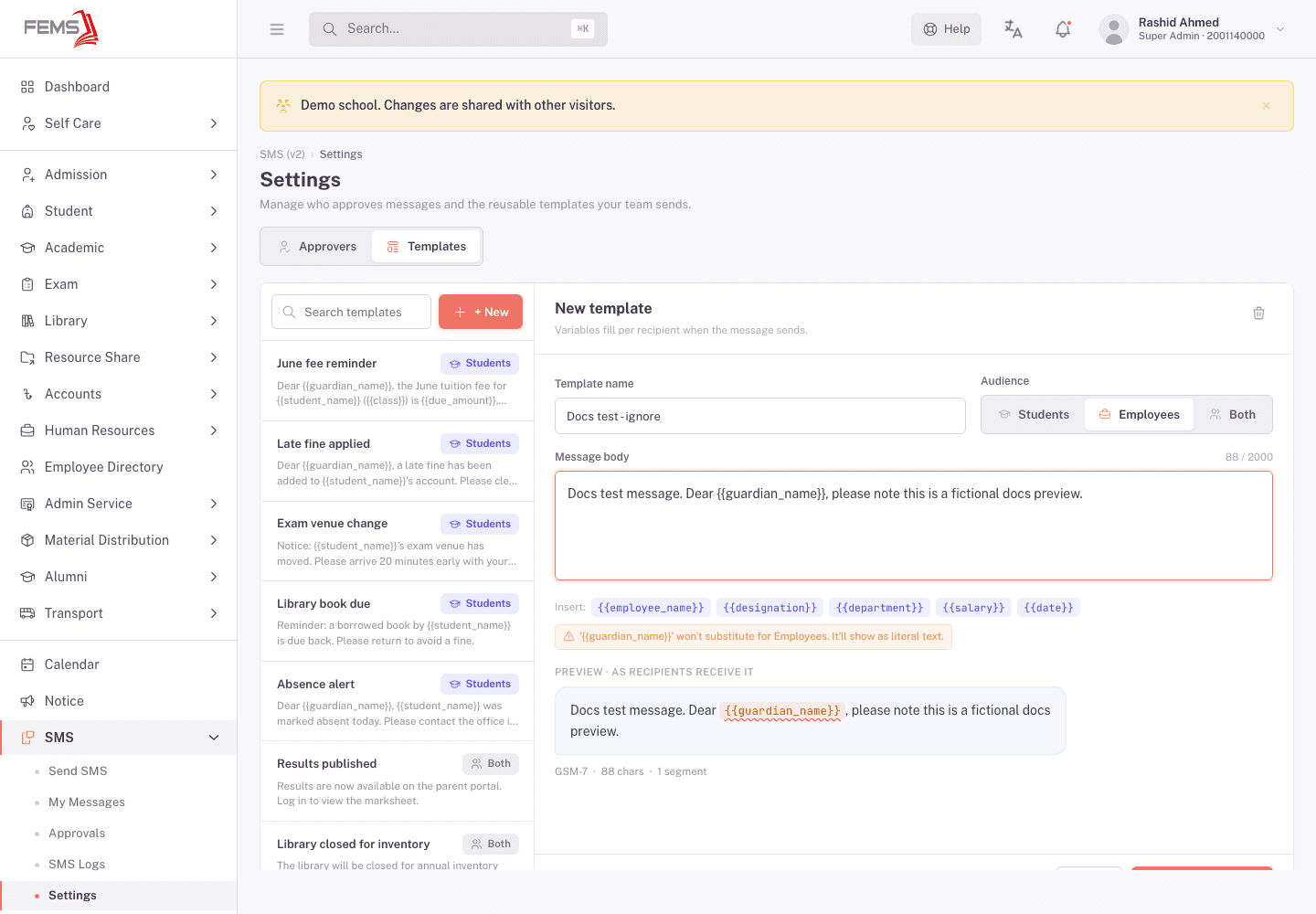
Click Create template to save it, or Cancel to discard the draft.
Variable warnings
If you type a variable that doesn't exist for the audience you picked, for example {{guardian_name}} on an Employees template, the editor warns you: it won't substitute for that audience and shows up as literal text in the message instead. Switch the variable, or switch the audience, before saving. A Both-audience template can hit this too, since it has to work for a variable set that fits every recipient.
Editing and deleting
Editing a template only changes future sends. It doesn't touch messages you've already submitted or sent using the old wording. Deleting a template removes it from the Send wizard's template picker going forward.
FAQ
I ticked the Approver box. Why doesn't it work yet? Toggling a role only stages the change. Click Save changes at the bottom of the Approvers tab to apply it.
Can one person be proof-reader and sender at the same time? Yes. Tick more than one checkbox in their row. They'll still have to clear each stage separately in their Approvals queue as the message reaches it.
What happens to old messages if I delete a template? Nothing. Deleting only removes the template from the picker for new messages. Anything already sent, or in progress, keeps its own wording regardless.
Why does my Bangla template show more segments than the English one? Bangla and other non-Latin text use Unicode encoding, which fits fewer characters per segment than plain English (GSM-7). Watch the encoding and segment count under the message body to see this before you save.
Related pages
Reviewing and approving messages
Work the Proof-read, Approval, and Sender queues, read a message before you decide, and approve, decline, or release it.
Reading the SMS delivery log
Find any SMS the platform has sent, including automatic notifications and one-time codes, and check its delivery status.