Reading the SMS delivery log
Find any SMS the platform has sent, including automatic notifications and one-time codes, and check its delivery status.
SMS Logs is a platform-level screen: the full stream of every SMS FEMS has sent, not just the bulk messages your team writes on Send. Most school staff never see this screen.
Prerequisites
You need platform Super Admin access. If you're school staff wondering whether a specific message reached someone, use Tracking your messages instead, it covers the same idea for the messages you personally sent.
What this log is
Open SMS > SMS Logs. It records two kinds of SMS:
- Notifications: automatic messages the system sends on its own, like payment receipts, absence alerts, and event reminders.
- OTP codes: one-time verification codes, for example during login or password reset.
The header shows a rolling count ("805 in last 30 days"), separate from the log list below it, which shows every entry by default until you filter it.
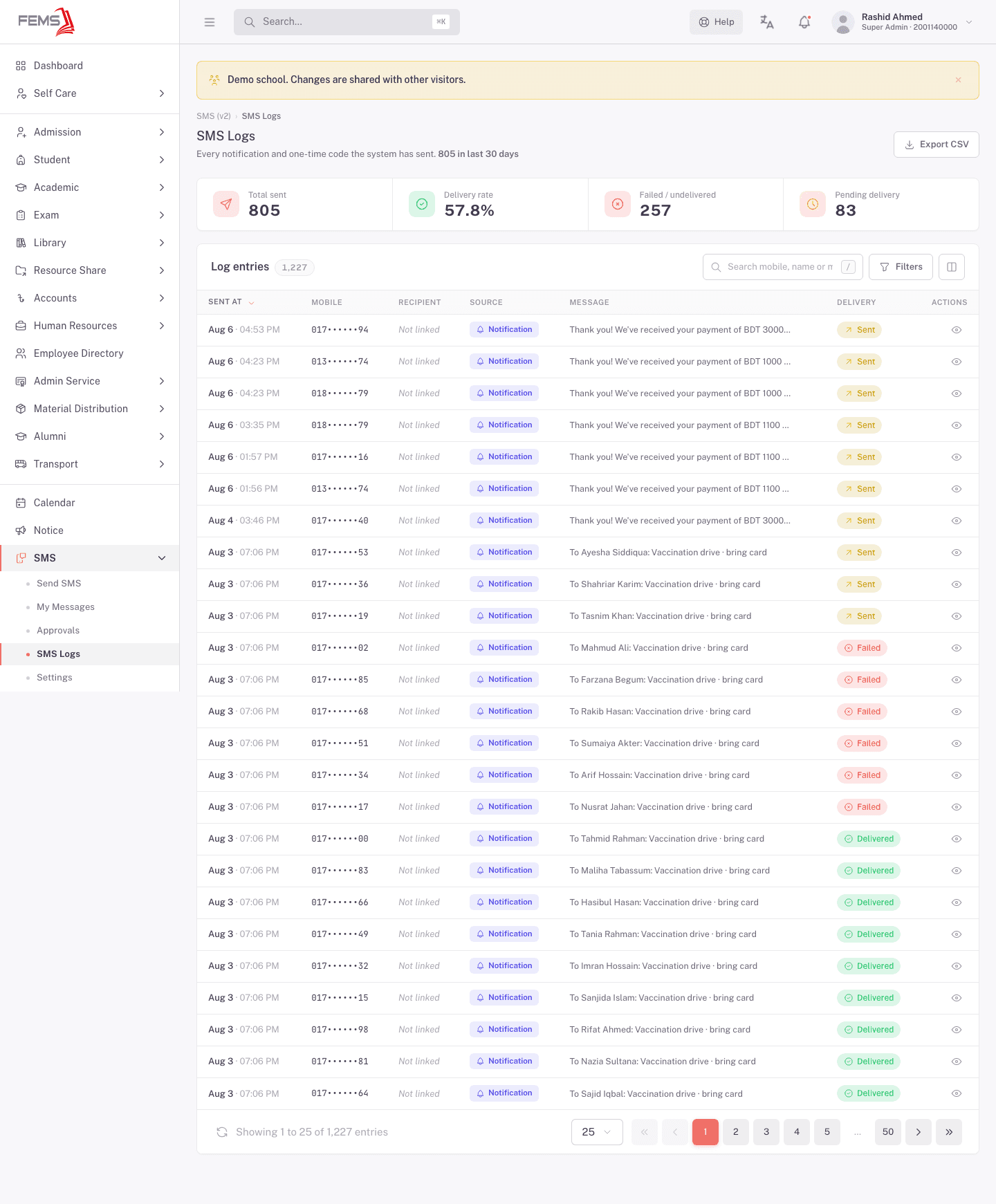
Delivery statuses
The Filters drawer's Delivery status options are: Delivered, Submitted, Pending, Undelivered, and Failed.
- Delivered: the recipient's phone confirmed receipt.
- Submitted: handed off to the SMS gateway, waiting to hear back.
- Pending: still queued, not yet handed to the gateway.
- Undelivered / Failed: the gateway couldn't get it to the phone.
Finding a message
The stat cards at the top double as shortcuts. Click Delivery rate, Failed / undelivered, or Pending delivery to jump straight to that filter.
For anything more specific, click Filters to open the drawer:
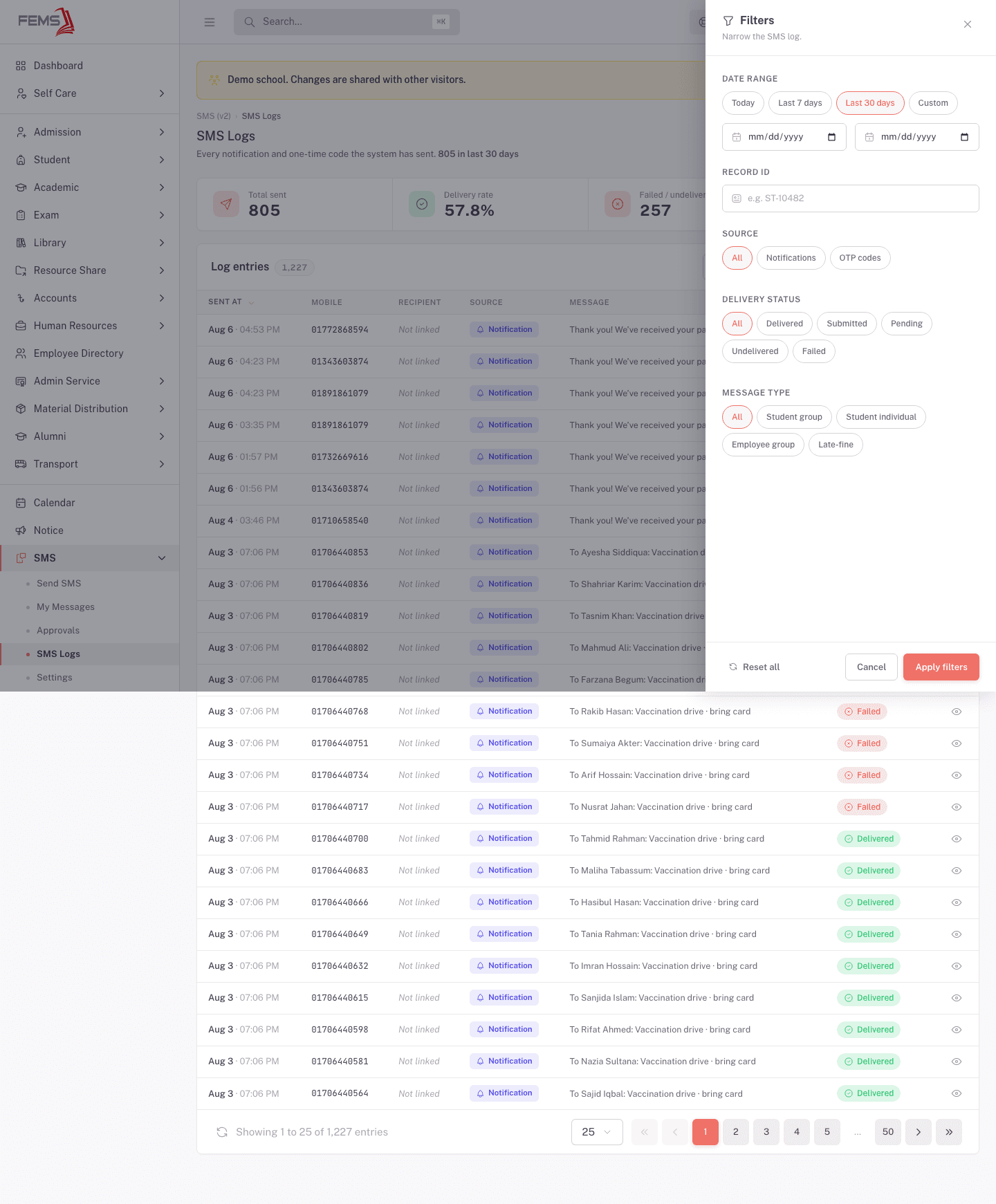
- Date range: Today, Last 7 days, Last 30 days, or a custom range.
- Record ID: search by the ID of the record the SMS relates to (for example a fee invoice).
- Source: All, Notifications, or OTP codes.
- Delivery status: any of the five statuses above.
- Message type: All, Student group, Student individual, Employee group, or Late-fine.
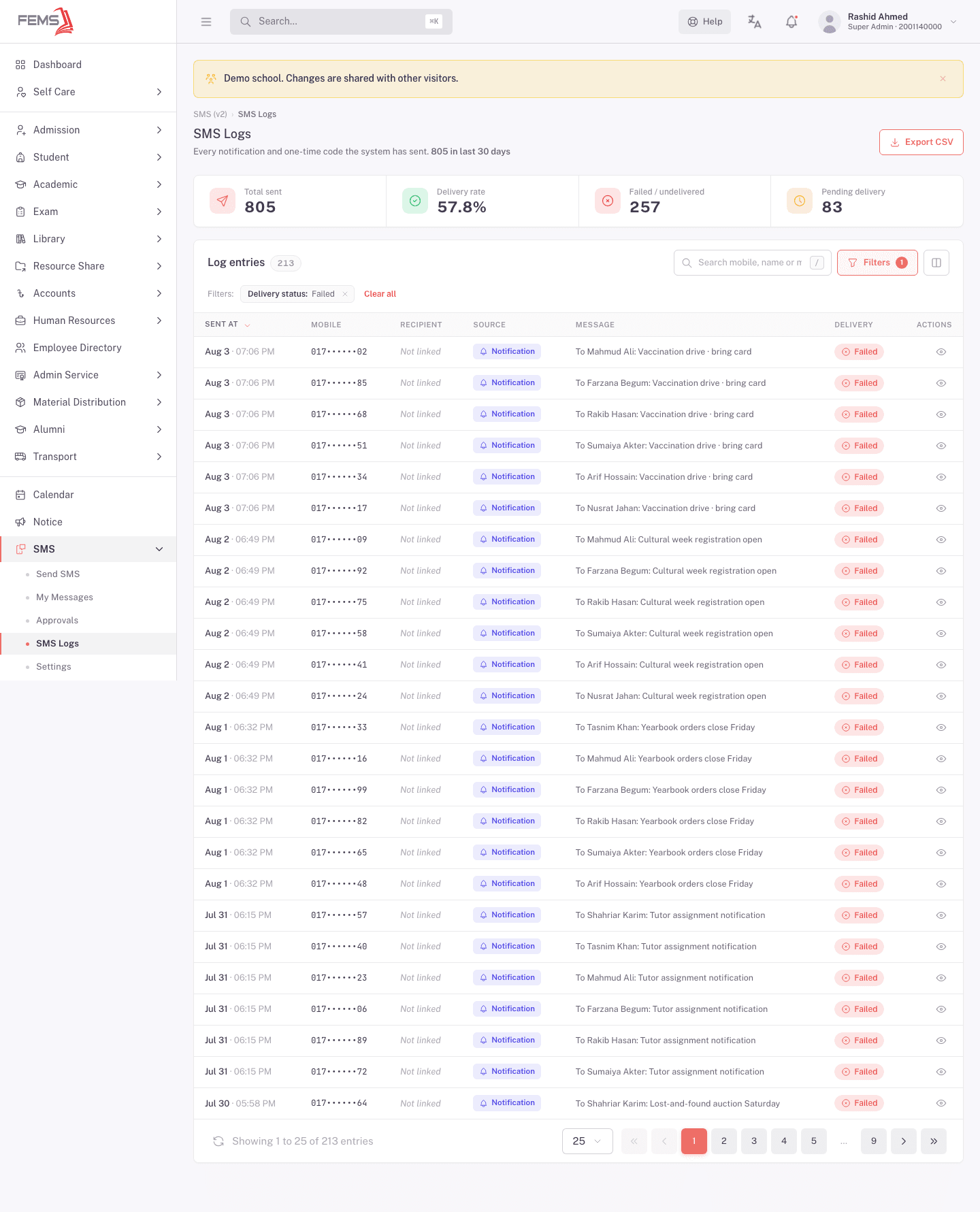
Applied filters show as a removable chip next to Clear all. You can also type into the search box above the list to search by mobile number, name, or record ID.
Click a row, or its eye icon, to open the detail drawer: the message body, the recipient's masked-in-this-guide mobile number, when it was sent, and a delivery timeline (Queued, Submitted to gateway, then Delivered, Failed, or whatever it currently is), plus the raw gateway response for troubleshooting.
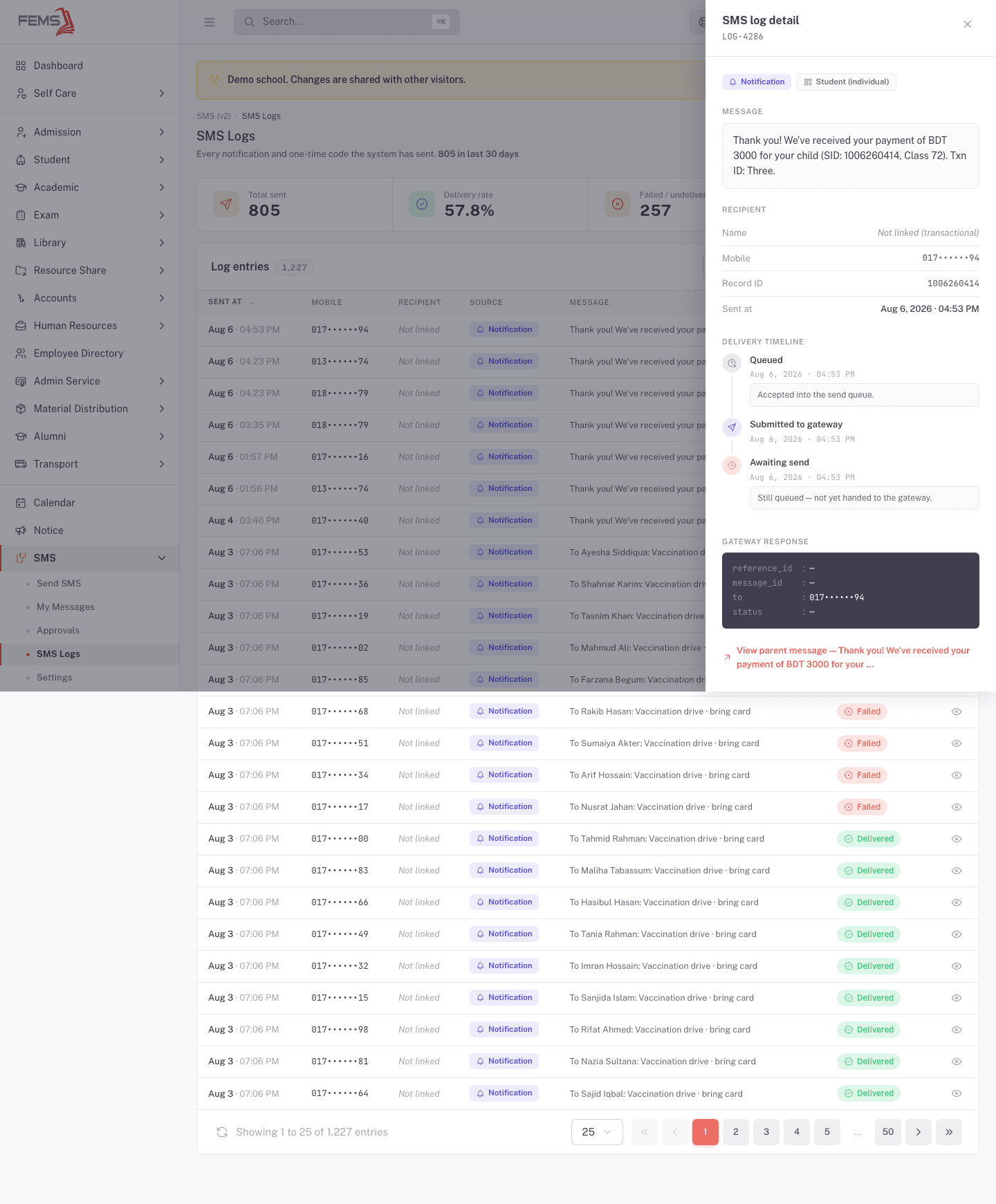
A Failed message's detail drawer has a Retry send button that re-queues that single SMS.
Exporting
Click Export CSV to download the current list, including any filters you've applied.
Not your screen?
If you're school staff and just want to know whether a message you sent arrived, this isn't the screen for that. Go to Tracking your messages instead.
FAQ
Why do I see OTP messages here that nobody composed? One-time codes are sent automatically by the system, for things like login verification, not by anyone on your team. Filter Source to OTP codes to see only these.
What's the difference between Undelivered and Failed? Both mean the message didn't reach the phone. They're tracked as separate statuses in the Filters drawer, so you can filter for either.
Can a school admin see this log for their own school? This screen is platform-level, built for FEMS operators, not individual schools. School staff track their own sent messages on Tracking your messages instead.