Navigating the admin console
Menus, search, notifications, and the dashboard home screen.
Once you're signed in, everything in FEMS is reachable from three places: the sidebar, the top bar, and your dashboard. This page tours all three.
Prerequisites
All users. What you see in the sidebar and on your dashboard depends on your role, but the navigation pattern is the same for everyone.
The sidebar
The left sidebar lists every module you have access to, grouped roughly by how often you use them: your own Self Care area near the top, daily-use modules like Student, Academic, and Accounts in the middle, and administrative modules like Role & Permission and Global Configuration further down. Click a module to expand its pages, then click a page to open it.
The top bar
The top bar stays the same wherever you are in FEMS.
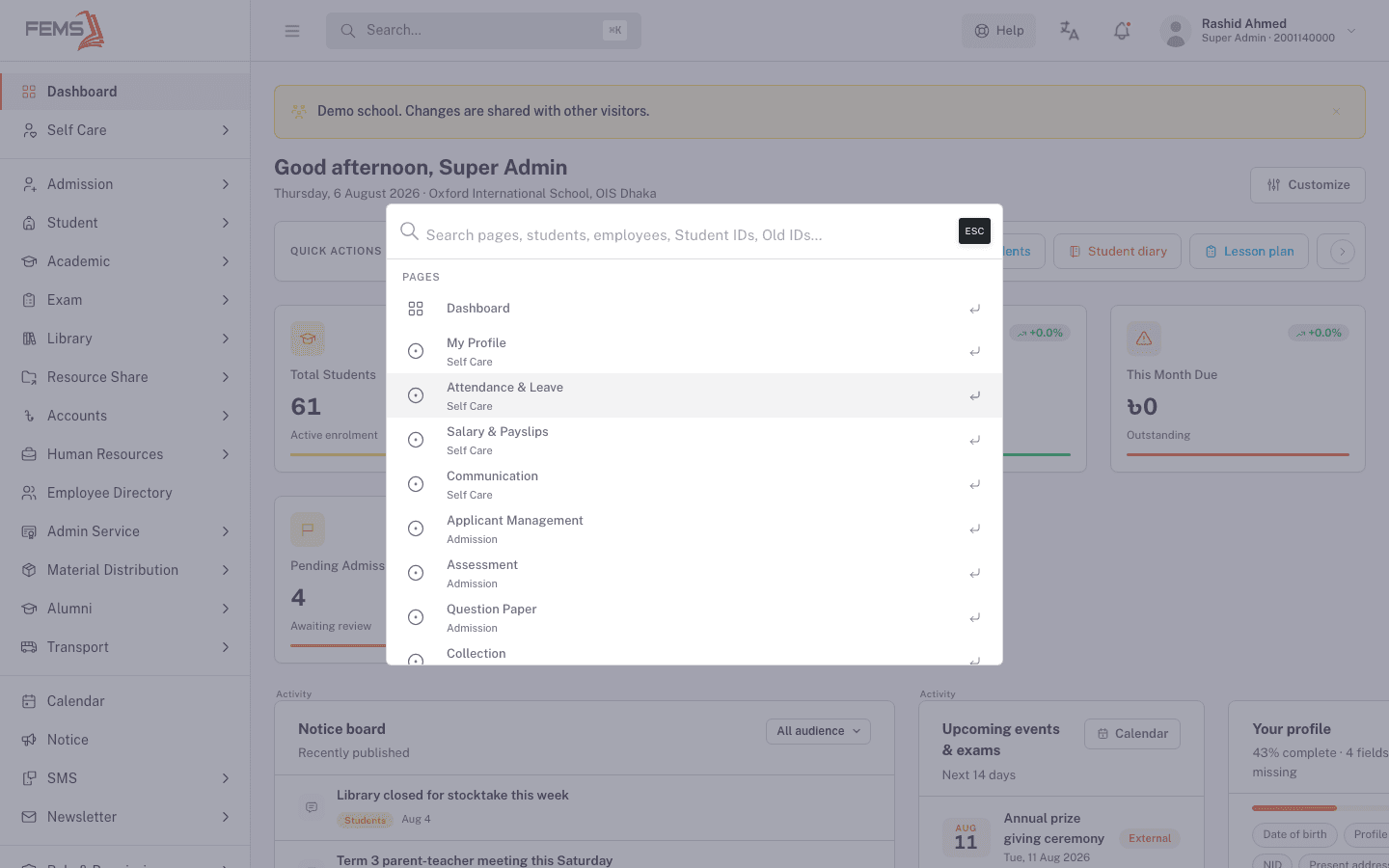
- Search (⌘K): click it, or press Cmd+K (or Ctrl+K on Windows), to open a command palette. Type to jump straight to a page, a student, an employee, or an ID, without hunting through the sidebar.
- Help: opens a help panel for the page you're currently on. See Getting help when you're stuck for what's inside.
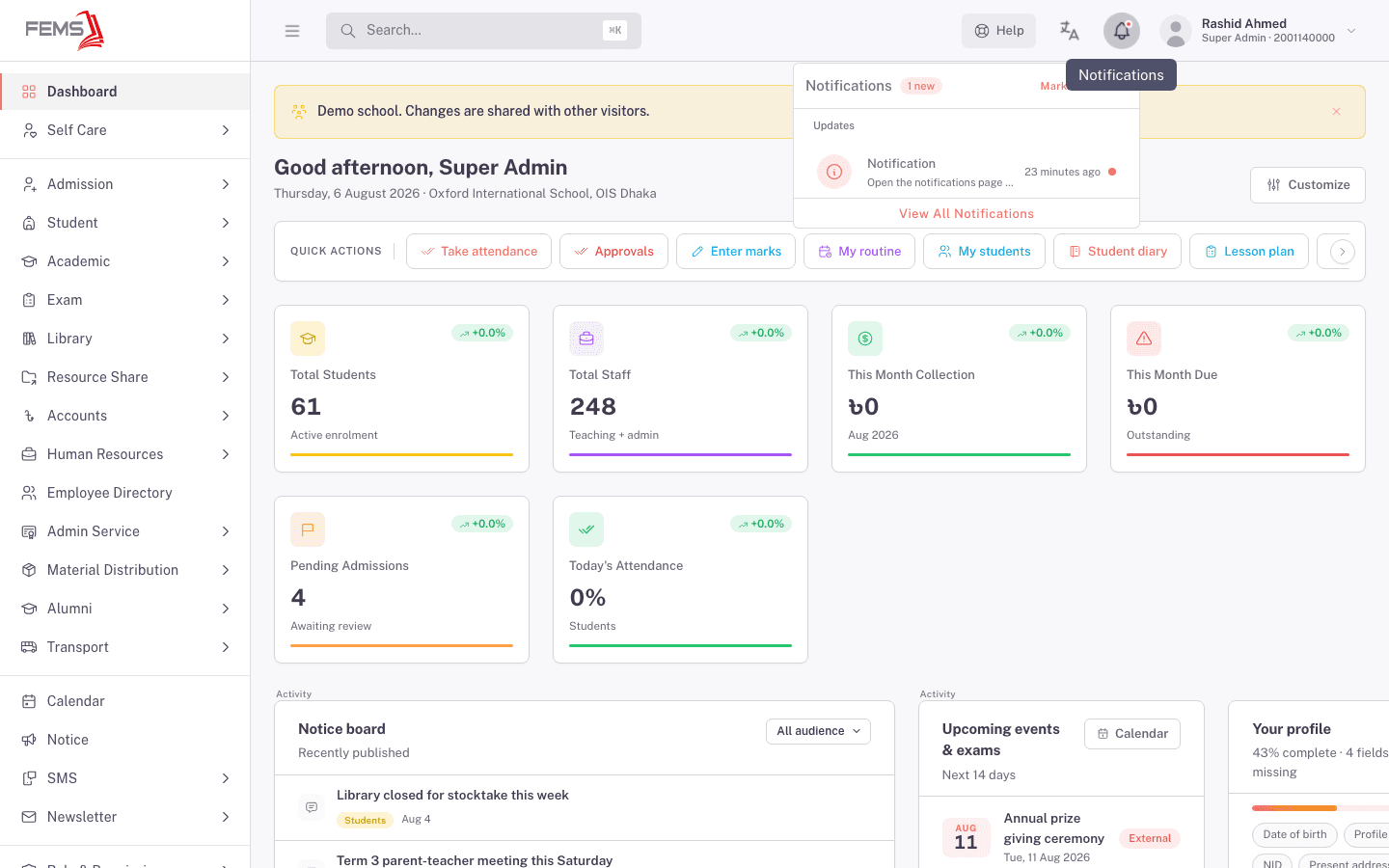
- Notifications (the bell icon): shows your personal alerts, with a red dot when you have unread ones.
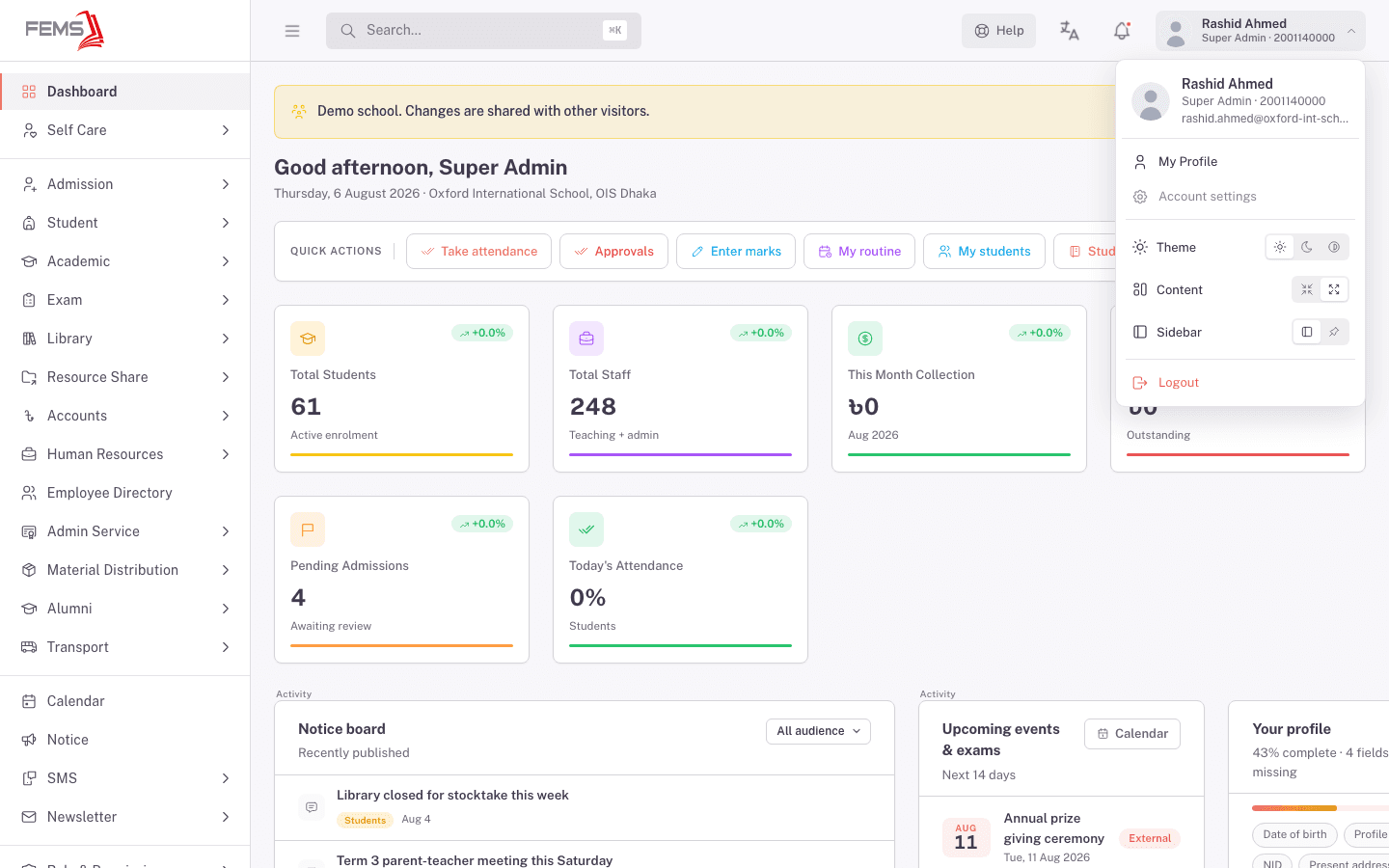
- Your profile menu: shows your name, role, and ID. Open it to reach My Profile, Account settings, switch Theme (light, dark, or system), adjust layout Content and Sidebar options, and Logout.
Click the bell to see your notifications without leaving the page you're on.
The dashboard
Your dashboard is what you land on right after signing in, and what Dashboard in the sidebar always takes you back to. It's built from widgets, and which widgets you see depends on your role: a Super Admin sees institution-wide numbers like total students and monthly collection, while a teacher sees things like their own class routine and marks pending. Common pieces include:
- Quick actions: one-click shortcuts for the things your role does most, like Take Attendance or Enter Marks.
- Summary cards: totals like Total Students, Total Staff, or This Month Collection.
- Activity widgets: the notice board, upcoming events and exams, and your own profile completeness.
- Pipeline widgets: things waiting on you, like pending approvals or an admission funnel.
You can rearrange your own dashboard using Customize near the top of the page.
FAQ
I can't find a module I need. What's wrong? Two likely reasons: your role doesn't have access to it, or you're looking for it under a different name than you expect. Try the search palette (⌘K) first, it searches by page name and often surfaces things the sidebar groups differently. If it's genuinely missing, ask your Super Admin.
Does the dashboard look the same for every role? No. Widgets are driven by what your role is permitted to see, so a teacher's dashboard and a Super Admin's dashboard show different things.
Can I change my dashboard layout? Yes, using Customize on the dashboard itself. A Super Admin can also preview what another role's dashboard looks like, without switching accounts.
What does the small colored dot next to a sidebar item mean?