Getting help when you're stuck
Using the in-app help center and raising a support ticket.
FEMS gives you three layers of help without leaving the app: a quick help panel on the page you're on, a searchable help center, and a support ticket you can raise directly.
Prerequisites
All users. Everyone can open the help panel and knowledge base. Raising a support ticket and managing the knowledge base or tickets may be limited to help-desk staff and admins at your school.
The Help panel
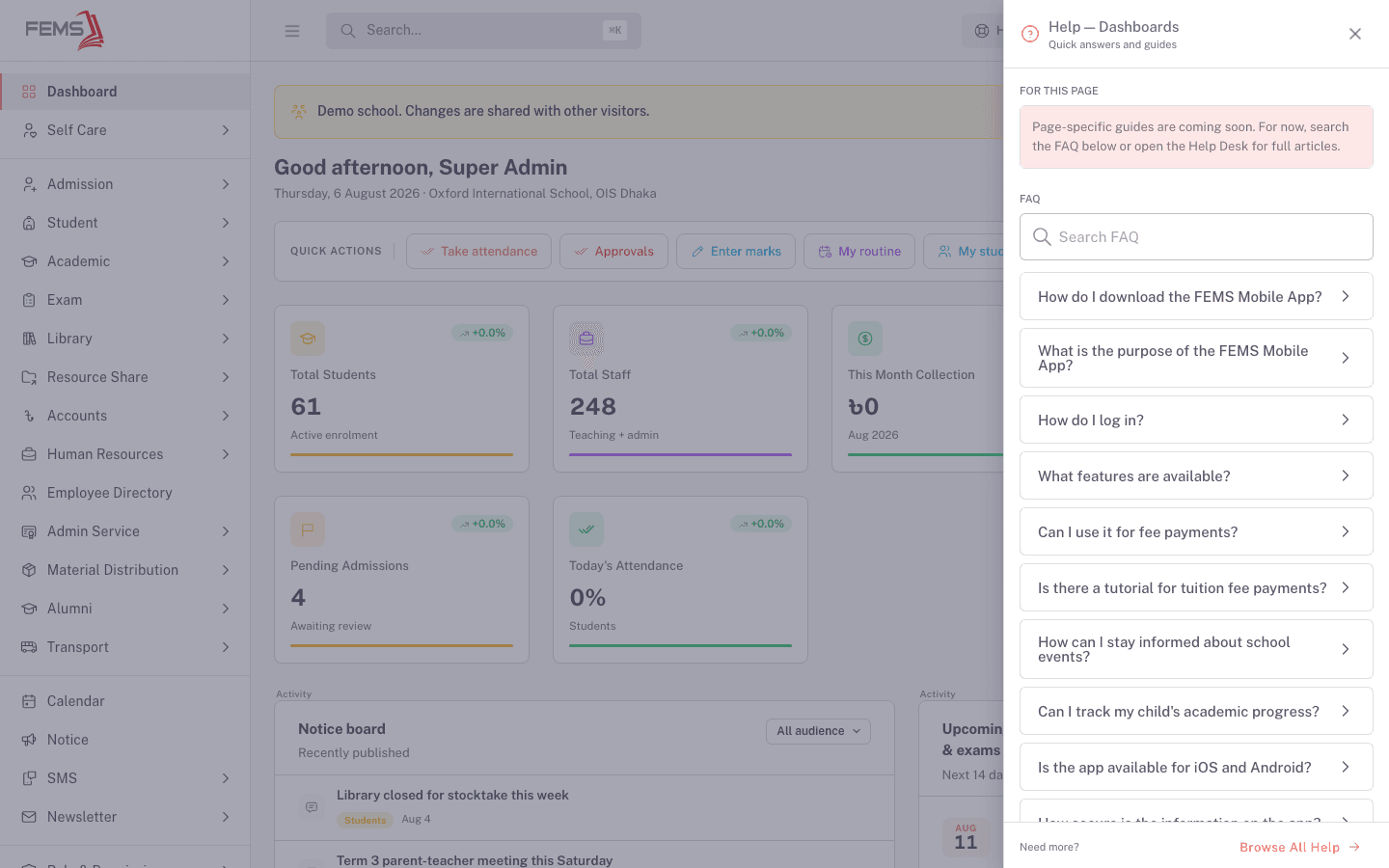
Click Help in the top bar, on any page, to open a panel scoped to where you are. It's titled after the page you're on (for example, "Help - Dashboards"), and shows:
- For this page: a short note if a page-specific guide exists yet. Many pages currently show "Page-specific guides are coming soon" while FEMS's help content library grows.
- FAQ: a searchable list of frequently asked questions.
- Browse All Help: a link into the full Help Desk knowledge base if the FAQ doesn't answer your question.
Browsing the knowledge base
If the quick FAQ doesn't cover it, click Browse All Help or open Help Desk > Knowledge Base from the sidebar. You'll see a search box, a list of the latest articles, and categories you can browse by topic.
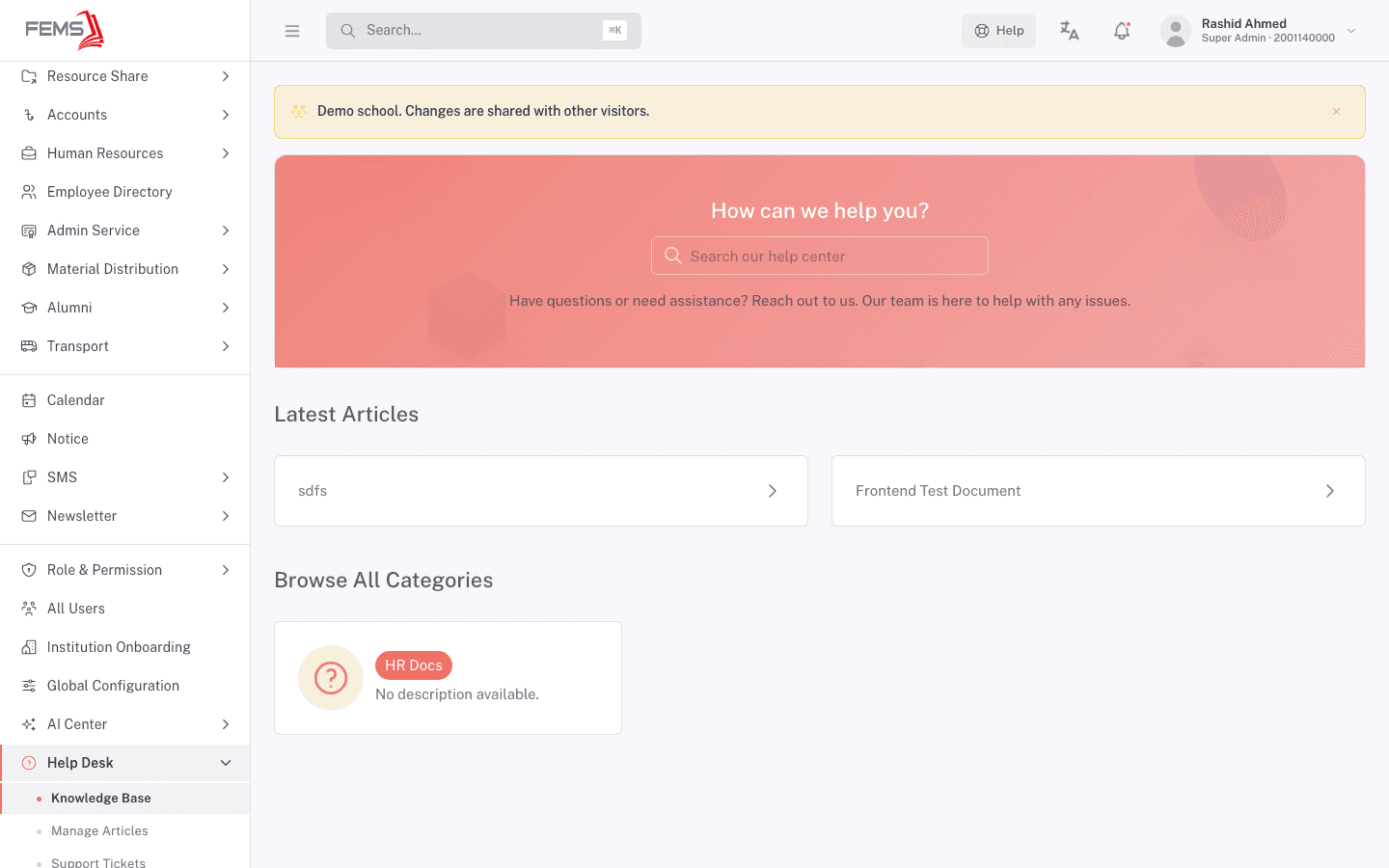
Staff with the right access manage this content from Help Desk > Manage Articles.
Raising a support ticket
When you can't find an answer, raise a ticket instead of guessing.
- Go to Help Desk > Support Tickets in the sidebar.
- You'll see your school's list of conversations, each with a status (like Open) and a priority.
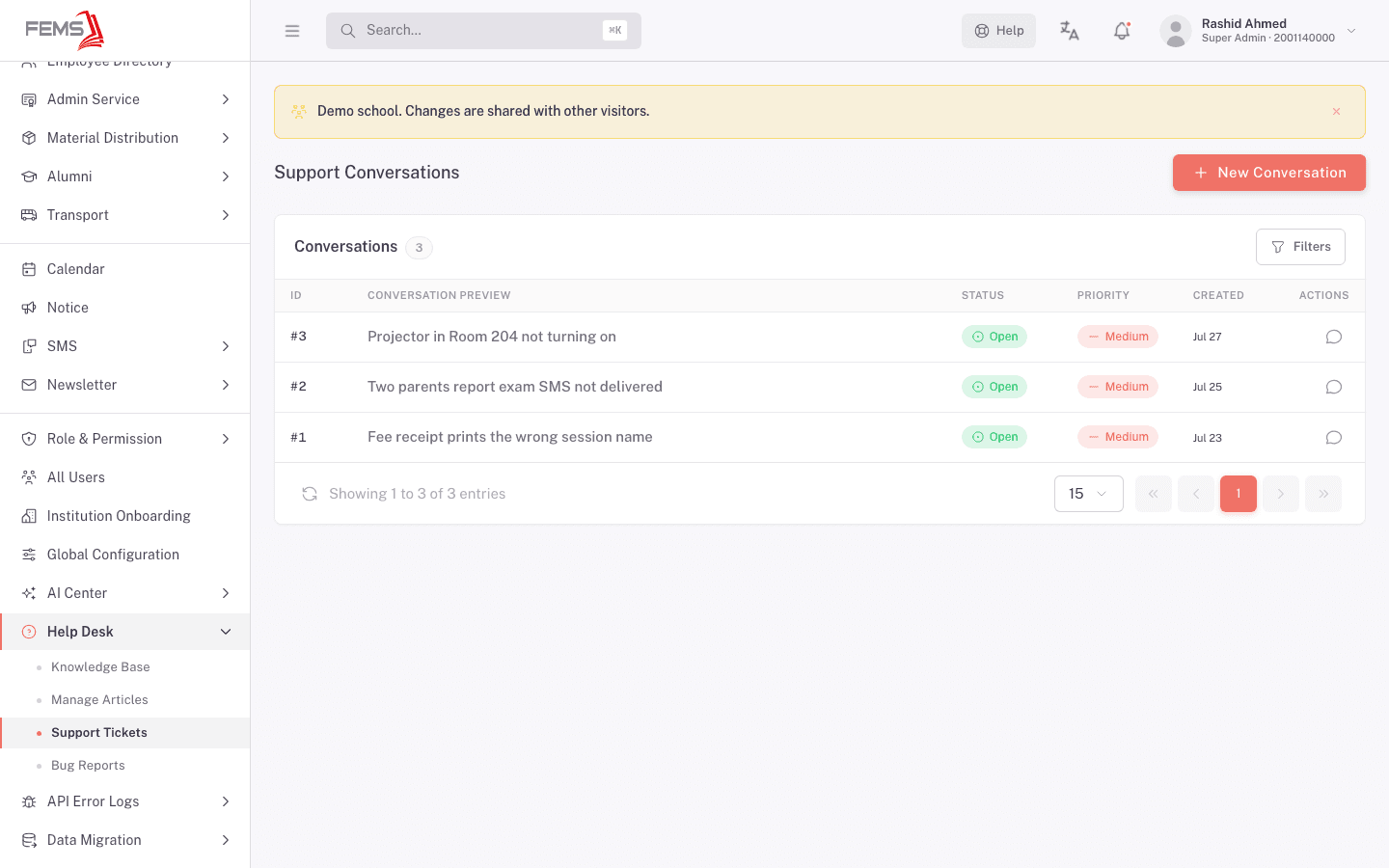
- Click New Conversation.
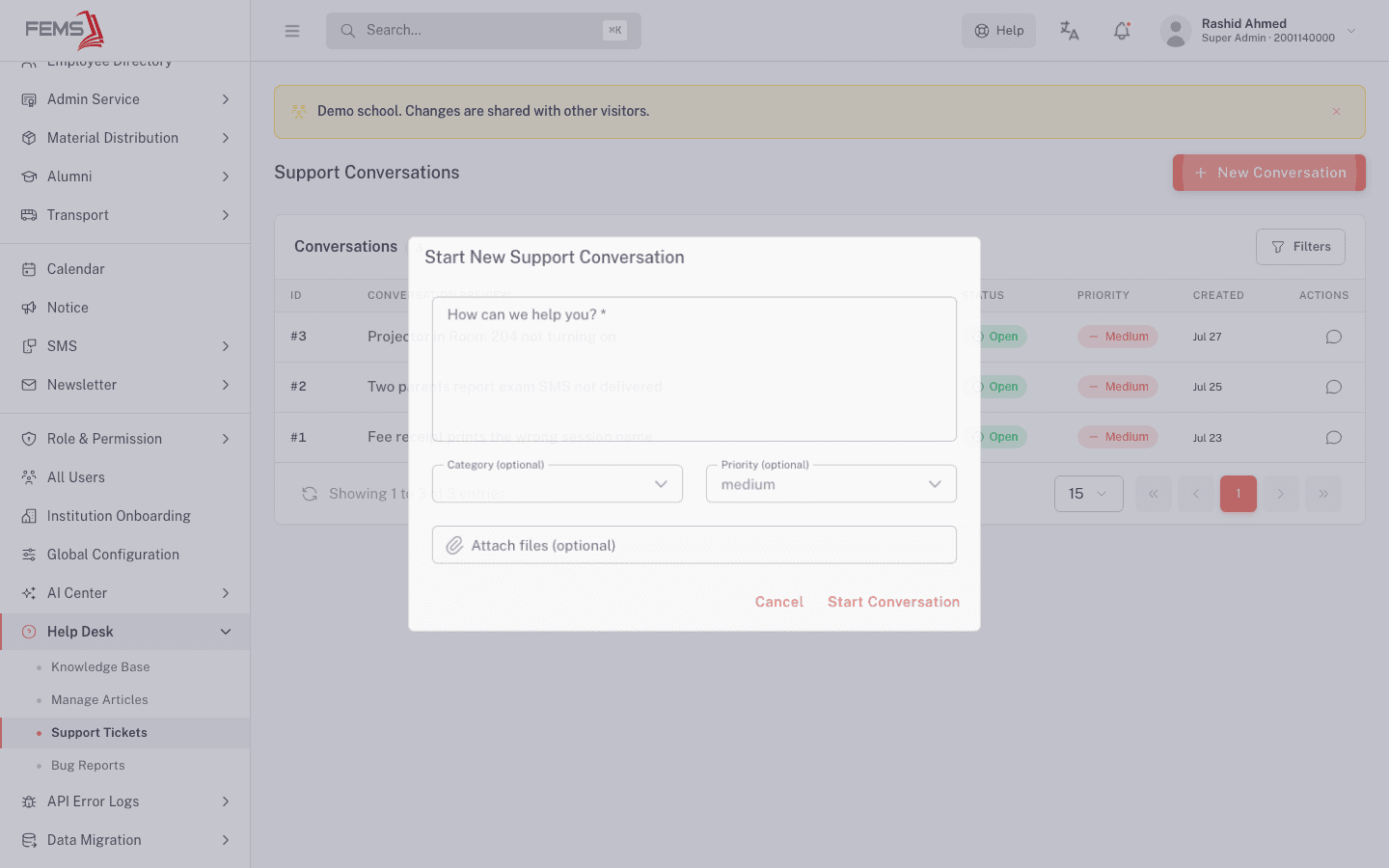
- Describe your problem in How can we help you?. Be specific, "Fee receipt prints the wrong session name" gets picked up faster than "something's wrong."
- Optionally pick a Category and a Priority.
- Optionally Attach files, like a screenshot of the problem.
- Click Start Conversation.
Your ticket appears in the conversations list, and a help-desk agent replies in the same thread.
Bug Reports
If what you found is a bug rather than a question, use Help Desk > Bug Reports instead of a support ticket. It routes to your school's bug tracker so a developer can pick it up.
FAQ
What's the difference between a support ticket and a bug report? A support ticket is for "I don't know how to do X" or "something looks wrong with my data." A bug report is for a specific, reproducible problem in the software itself.
Is the FAQ in the Help panel written for the exact page I'm on? Not always yet. Some pages show "Page-specific guides are coming soon" and fall back to a general FAQ. Use Browse All Help or a support ticket if the FAQ shown doesn't match what you're looking for.
Who sees my support ticket? Your school's help-desk admins or agents. They triage it through a status lifecycle (open, in progress, resolved, closed) and reply in the same thread you started.
Can I attach a screenshot to a ticket? Yes, use Attach files on the new conversation form.