Finding a shared document
Search shared documents by department, type, or number and open the one you need.
Document List is a read-only search view over the documents your school has uploaded to Resource Share. Use it to find and open a document someone shared with you, rather than to upload or manage one.
Prerequisites
No special access is required to reach this page.
What you'll find on this page
The page loads every shared document by default, and a Filters panel narrows the list down by department, document type, name, or number.
Filtering the list
- Click Filters.
- Fill in any combination of Department, Document type, Document name, or Document no.
- Click Apply.
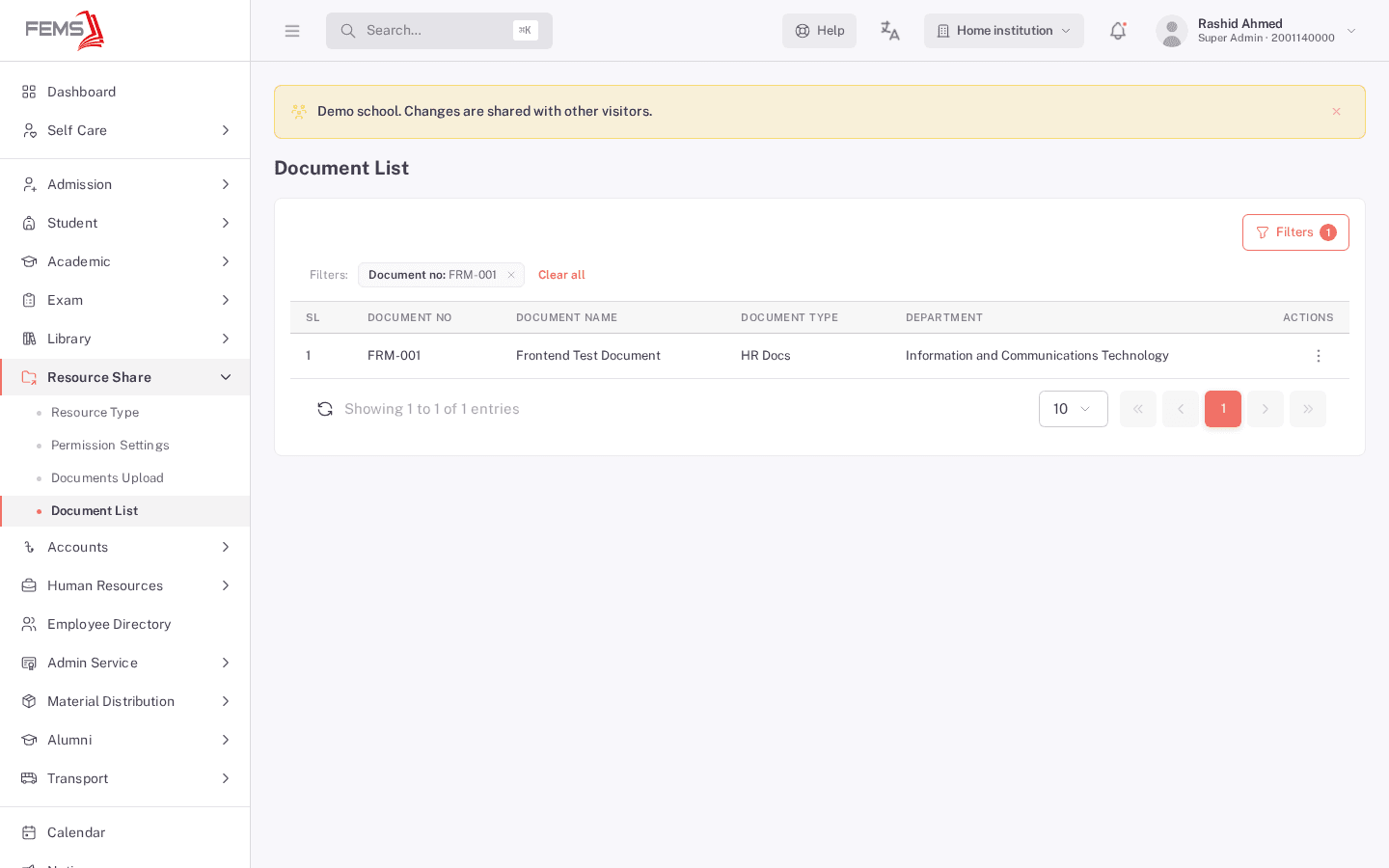
- Click Refresh to load the filtered results.
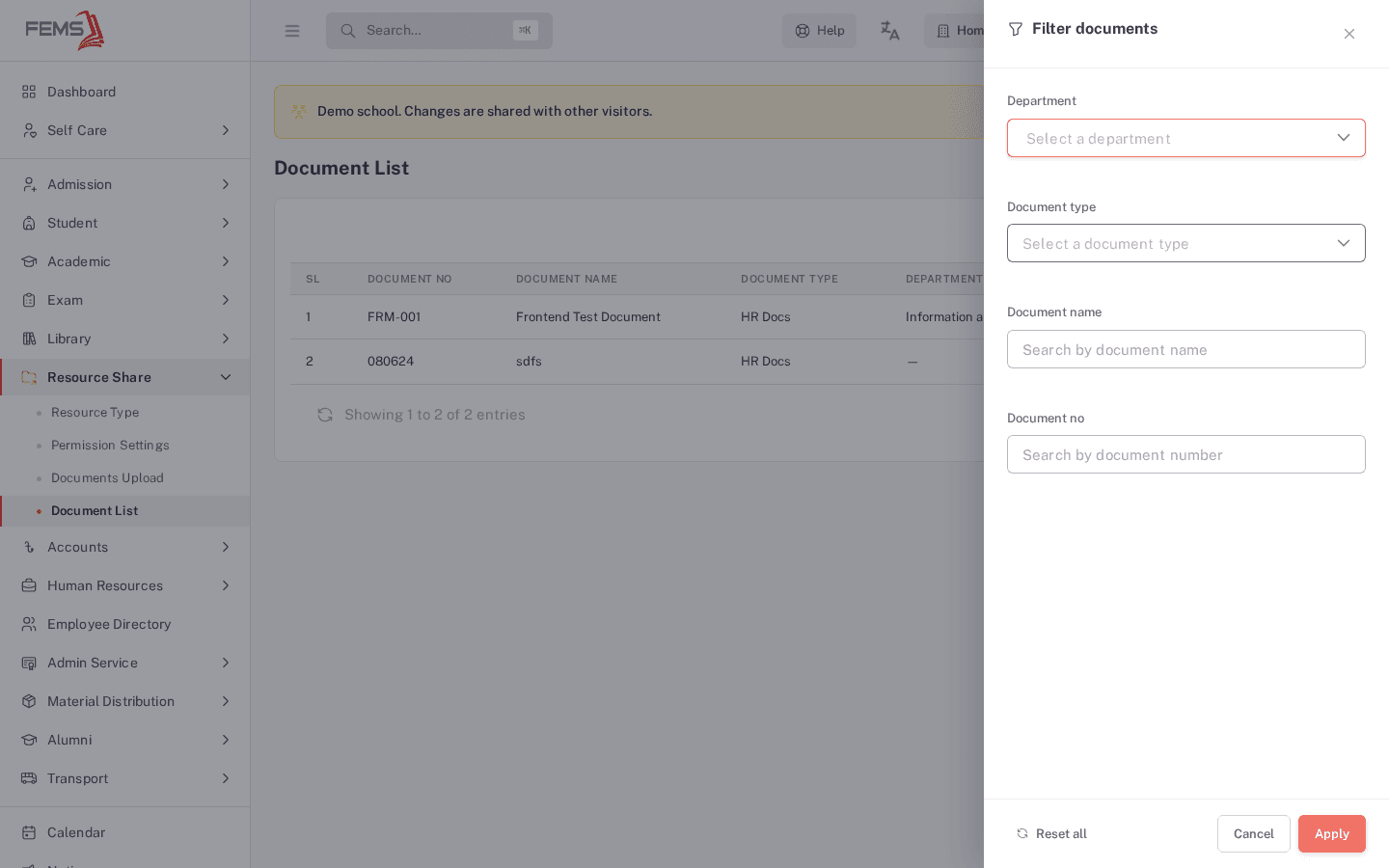
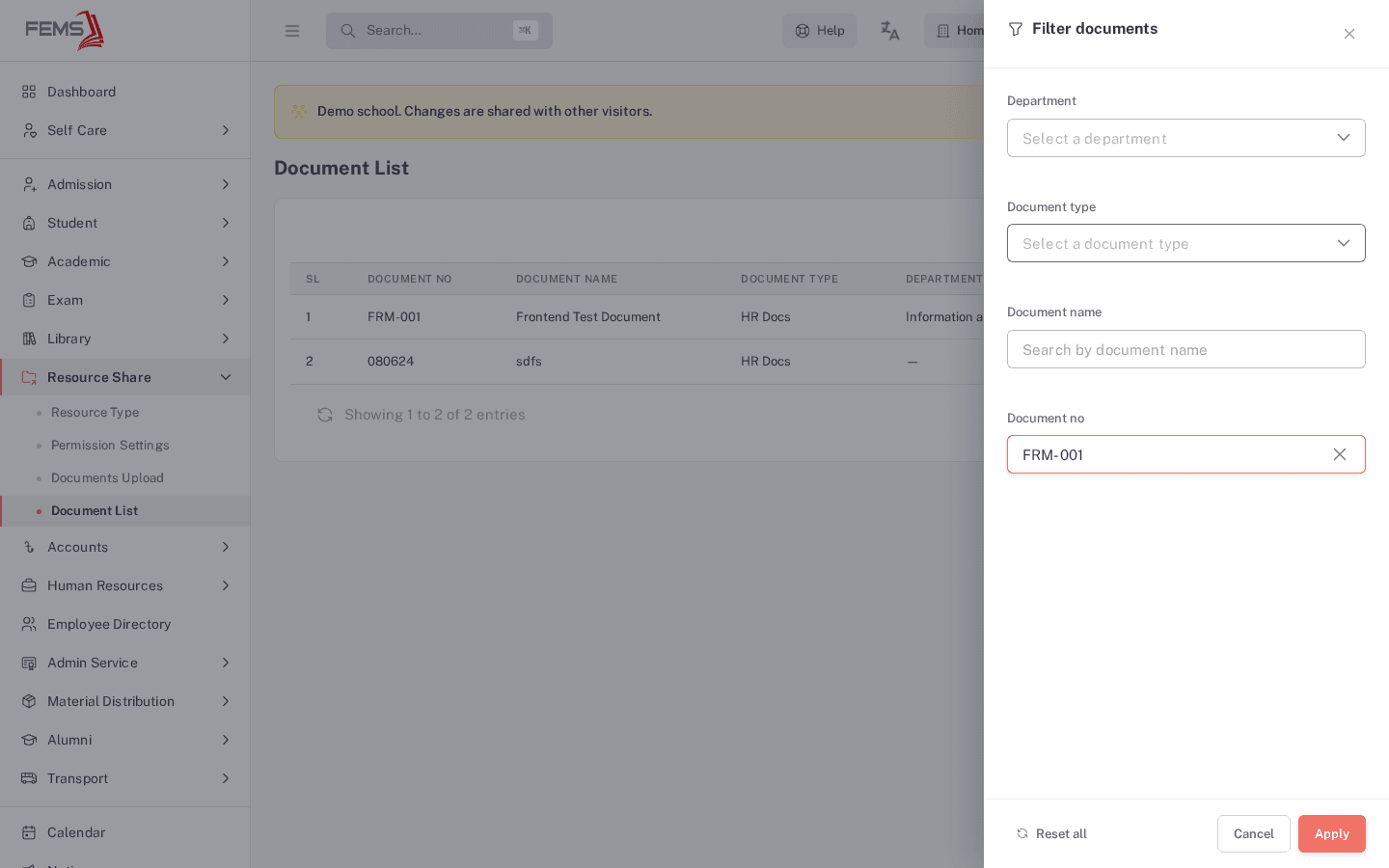
You'll see an active-filter chip appear above the table (for example, "Filters: Document no: FRM-001"). Click Refresh to bring the table in line with it.
When nothing matches
If no document matches your filters, the table shows a plain "No documents match your filters." message and a short notification confirms it.
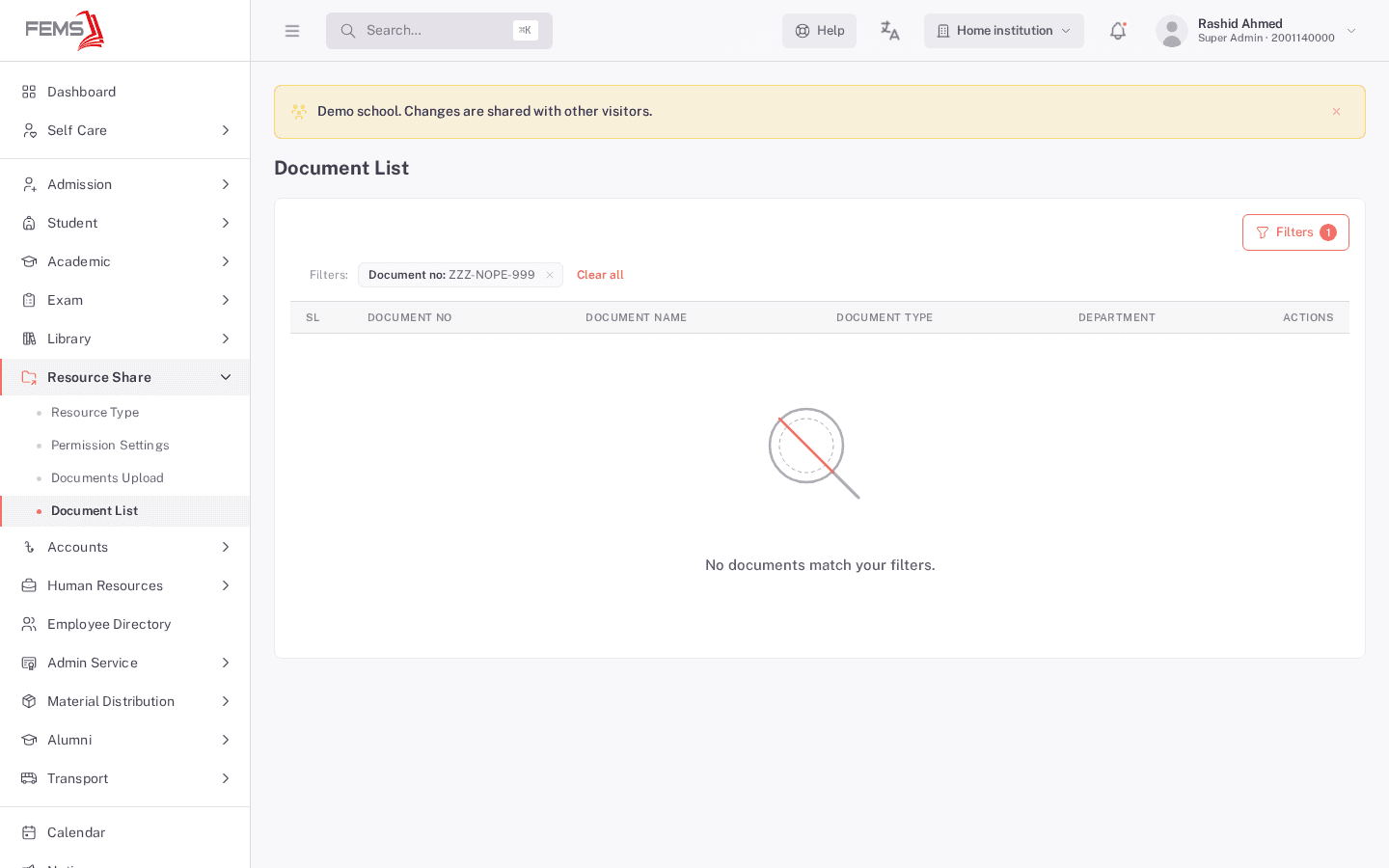
Click Clear all to remove every filter and see the full list again.
Opening a document
Each row has a View action that opens the document in a new tab. If a row has no file attached yet, the action is disabled.
FAQ
Do I need any special permission to search for a document? No, this page doesn't require a specific role today. See the note above if you find otherwise in your setup.
Why doesn't the list update right after I click Apply? Click Refresh after Apply. The filter chip appears first, but the table needs the separate Refresh click to catch up. This looks like a product bug; report it if it's confusing in your workflow.
Can I search by department or document type instead of a document number? Yes. The Filters panel accepts any combination of Department, Document type, Document name, and Document no. You don't need to fill in all of them.
What happens if I click View on a document with no file? Nothing happens. The button is disabled when a document has no file attached yet.
How is this different from the Documents Upload page? Documents Upload is where administrators create, edit, and share documents. Document List is a read-only view for finding one, open to any staff member.
Related pages
Uploading a document and sharing it
Upload a document with its type and department, then choose which campuses, departments, designations, or individuals can see it.
Distributing and tracking school materials
Find a student's assigned materials, check payment and delivery status, and run sales or delivery reports.