Setting up admission form and admission fees
Configure the form-sale fee and the admission fee per class, session, and campus before admissions open.
FEMS charges two separate admission fees, and both have to be configured before your office can take any money. Set these up once per session, before you start logging applications.
Prerequisites
Admission office staff or an admin with the Admission Configuration access. Your campuses, classes, and academic sessions must already exist, and your chart of accounts needs the Admission Form Sale and Admission Fees accounts.
The two fees, and why the order matters
| Fee | What it pays for | When it's collected |
|---|---|---|
| Admission Form Sell | Buying the admission form | When you log the application, before the admit card |
| Admission Fee | Enrolling after passing the test | After scoring, before the applicant becomes a student |
Each fee is configured per class + session + campus. A class with no configuration causes trouble later, so configure every class you plan to admit into. A missing Admission Form Sell row blocks form-fee collection outright. A missing Admission Fee row is worse in a quieter way: scoring still saves, but no invoice is raised, and the problem only surfaces when someone tries to collect the admission fee.
Opening the configuration screen
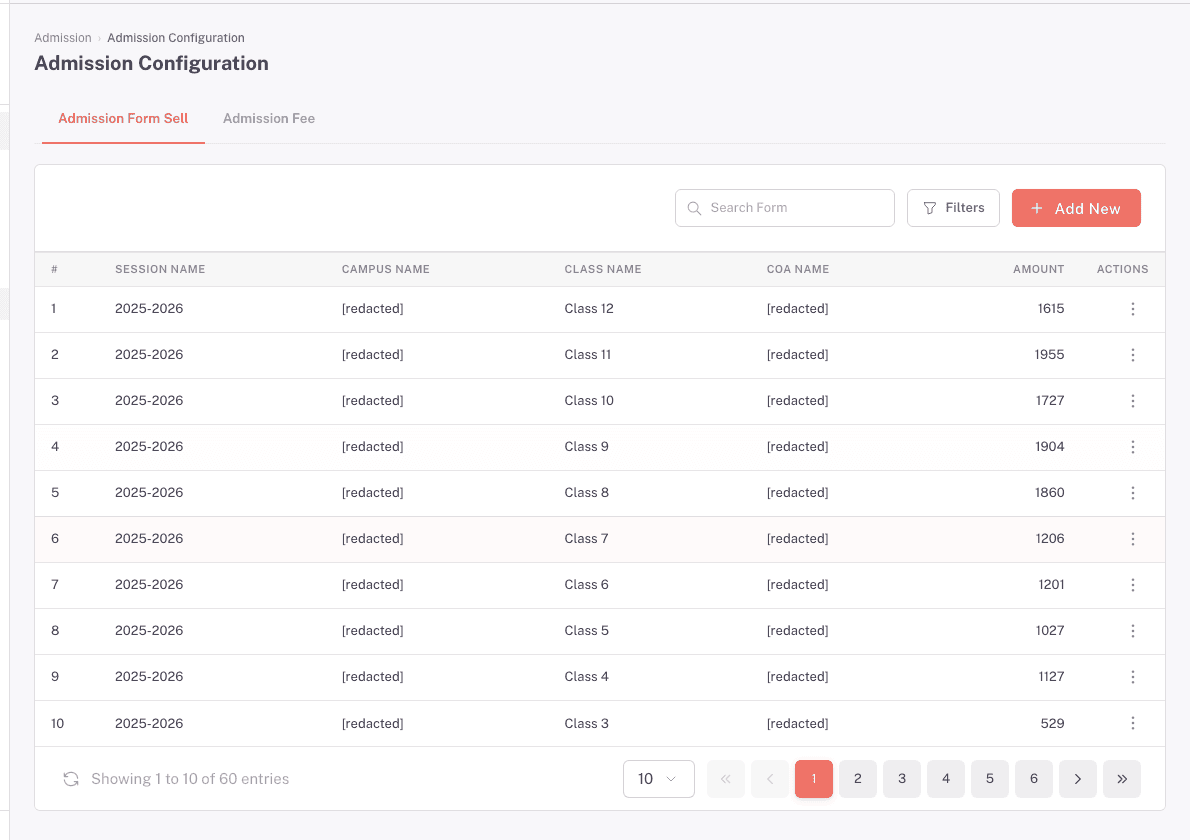
- In the sidebar, open Admission, then Configuration.
- Pick the tab you need. Admission Form Sell is the form-sale fee, Admission Fee is the enrollment fee.
Both tabs work the same way: an Advanced Filter panel at the top, a list of existing configurations below, and an Add New button on the right.
Adding a fee configuration
- Open the tab for the fee you want to set.
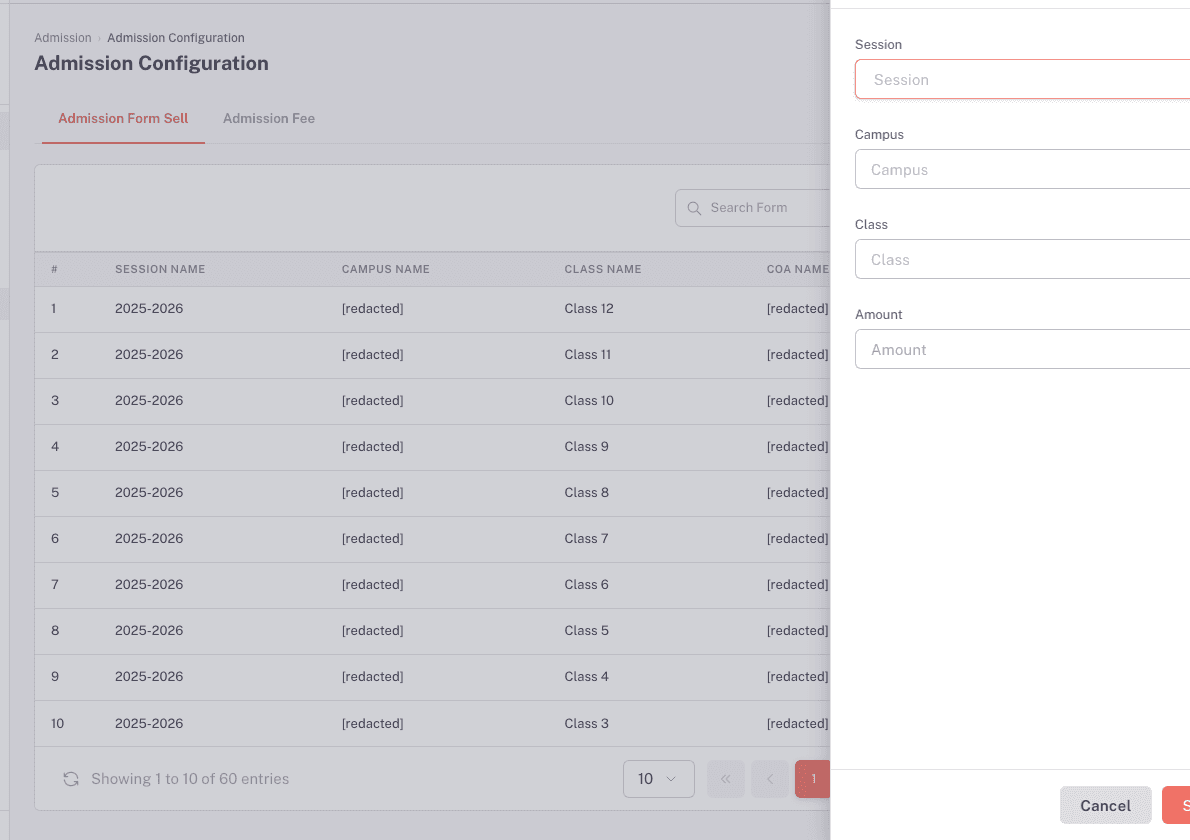
- Click Add New. A drawer opens on the right.
- Pick the Session, Campus, and Class this fee applies to.
- Type the Amount.
- Click Submit.
The drawer asks for the Session, Campus, Class, and Amount. The destination account is selected by the fee type, so you do not choose a chart-of-account row here.
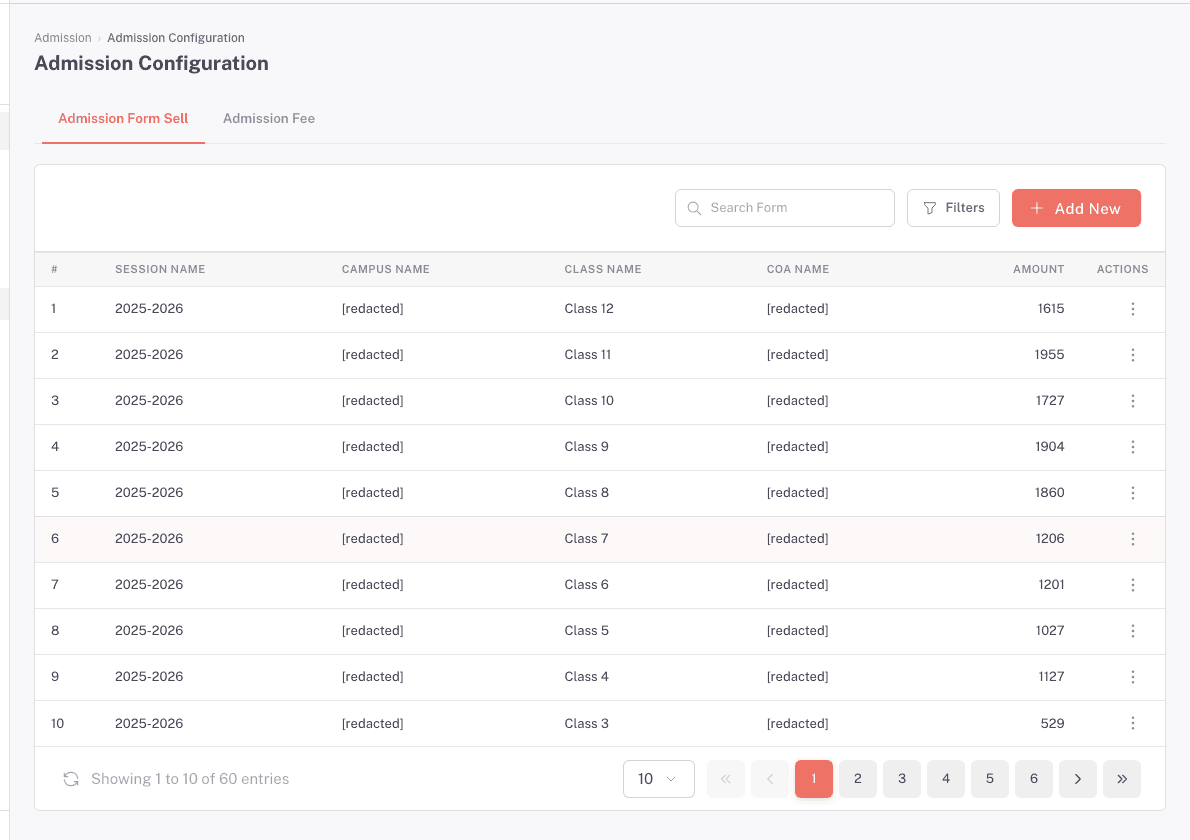
You'll see the new row in the list below, showing the session, campus, class, account name, and amount.
Editing a fee configuration
Click the edit icon on any row. The drawer reopens with the current values. Change the amount and save.
The two tabs differ here. On Admission Fee the button reads Update and the drawer is titled Edit Fee Config. On Admission Form Sell the button still reads Submit and the drawer is still titled Add New, even though you're editing. It does update the row you clicked.
Changing a fee later does not change applicants who were already scored. FEMS records the admission fee onto the applicant at the moment you score their test, and that recorded amount is what they pay. This is deliberate: it stops the amount a family was quoted from shifting under them after the fact.
Finding an existing configuration
Use the Advanced Filter panel to narrow by Select Session (Pick one or more), Select Campus(Pick one or more), and Select Class (Pick one or more), then click Process. Reset clears the filter. The search box above the table filters the rows already loaded.
Troubleshooting
I clicked Submit and got a success message, but no row appeared in the list. Trust the list, not the message. The configuration screens report success even when the save actually failed, so a "submitted successfully" toast is not proof the row saved. Refresh the list. If the row is missing, the most likely cause is that a configuration already exists for that exact session, campus, and class combination. Filter for that combination and edit the existing row instead of adding a new one.
I added a second configuration for a class that already had one. The two tabs behave differently, so check which one you were on.
On Admission Fee, a duplicate is rejected and no second row is created. On Admission Form Sell, a duplicate is not rejected: FEMS quietly overwrites the existing row's amount with the one you just typed, and reports success. There's no warning and no second row, so the change is easy to miss.
If you were on Admission Form Sell and didn't mean to change the fee, filter for that class, session, and campus and check the amount now.
I don't see Configuration in the Admission menu. The menu entry is permission-gated. Ask an admin to give you Admission Configuration access.
I can't collect the form fee, and the amount shows as 0. That class has no Admission Form Sell configuration for the applicant's session and campus. The collection screen shows 0 rather than an error until someone tries to submit. Add the configuration, then collect again.
Scoring shows "Admission fee configuration not found." That class has no Admission Fee configuration for the applicant's session and campus.
This one needs care. The applicant's mark and result are saved anyway, and only the invoice is missing. So the applicant looks scored while having nothing to pay against, and collecting the admission fee later fails with "Admission charge fee record is missing or ambiguous...". Add the configuration, then score the applicant again to raise the invoice.
FAQ
Do I need to set both fees up for every class? Set up every class you plan to admit into. A missing Admission Form Sell row blocks form-fee collection for that class. A missing Admission Fee row does not block scoring, but the score saves with no invoice raised, which blocks the admission-fee payment later.
Do I have to redo this every academic year? Yes. Configurations are tied to a session, so each new session needs its own rows.
Can a family pay part of the form fee now and the rest later? No. The form fee has to be paid in full, and the amount has to match the configured amount exactly. Partial and over-payments are both rejected.
If I raise the admission fee, do already-scored applicants pay the new amount? No. They pay the amount recorded when they were scored. Only applicants scored after your change pay the new amount.
Which account does the money post to?
Form-sale fees post to the Admission Form Sale account and admission fees post to the Admission Fees account in your chart of accounts.