Managing entrance test question papers
Upload question papers per class, work with auto-named sets, and print them for the test.
Every applicant who sits the entrance test is scored against a question paper. Upload one paper per class before test day, then print it when you need it.
Prerequisites
Admission office staff with the Add Question Paper access. You need the question paper saved as a PDF of 2 MB or smaller.
Uploading a question paper
- In the sidebar, open Admission, then Question Paper.
- Click New Question.
- Pick the Campus, then the Class. Class stays disabled until you pick a campus.
- Fill in Duration (Min), Mark, and Passing Mark.
- Under Question Set, choose the PDF.
- Click Process.
You'll see the paper in the list, with the set name FEMS assigned to it.
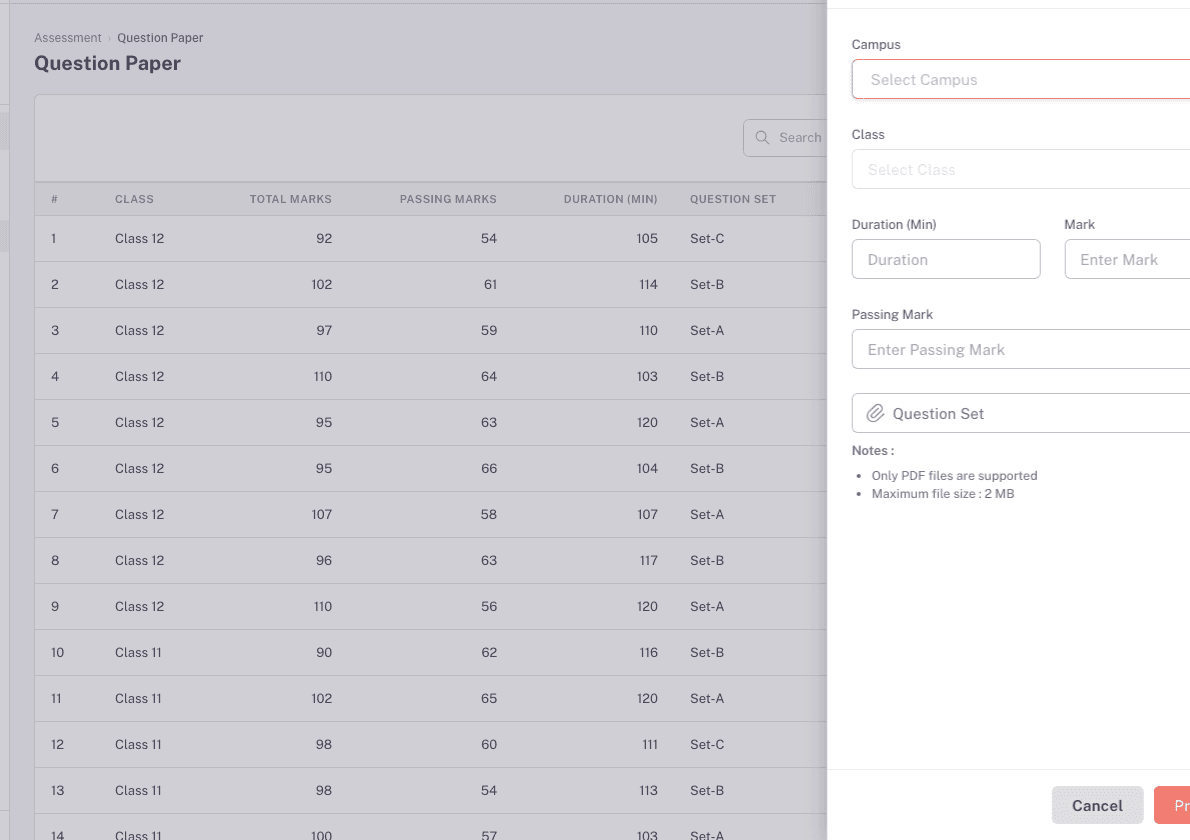
Only PDFs are accepted, and the file has to be 2 MB or smaller.
How set names work
You don't name a set. FEMS names it for you, counting up per class per academic year: the first paper for a class is Set-A, the next is Set-B, and so on.
That means a class can hold 26 papers in one academic year. Past Set-Z the upload fails, and the message you get is the generic "Error creating question paper." rather than anything about set limits. If a class that already has a Set-Z keeps failing to accept new papers, this is why.
The next letter is worked out from the highest set name that class already has, so deleting papers does not free up letters. Deleting Set-Z and uploading again produces another Set-Z, and deleting an earlier letter leaves the ceiling where it was.
Reading the list
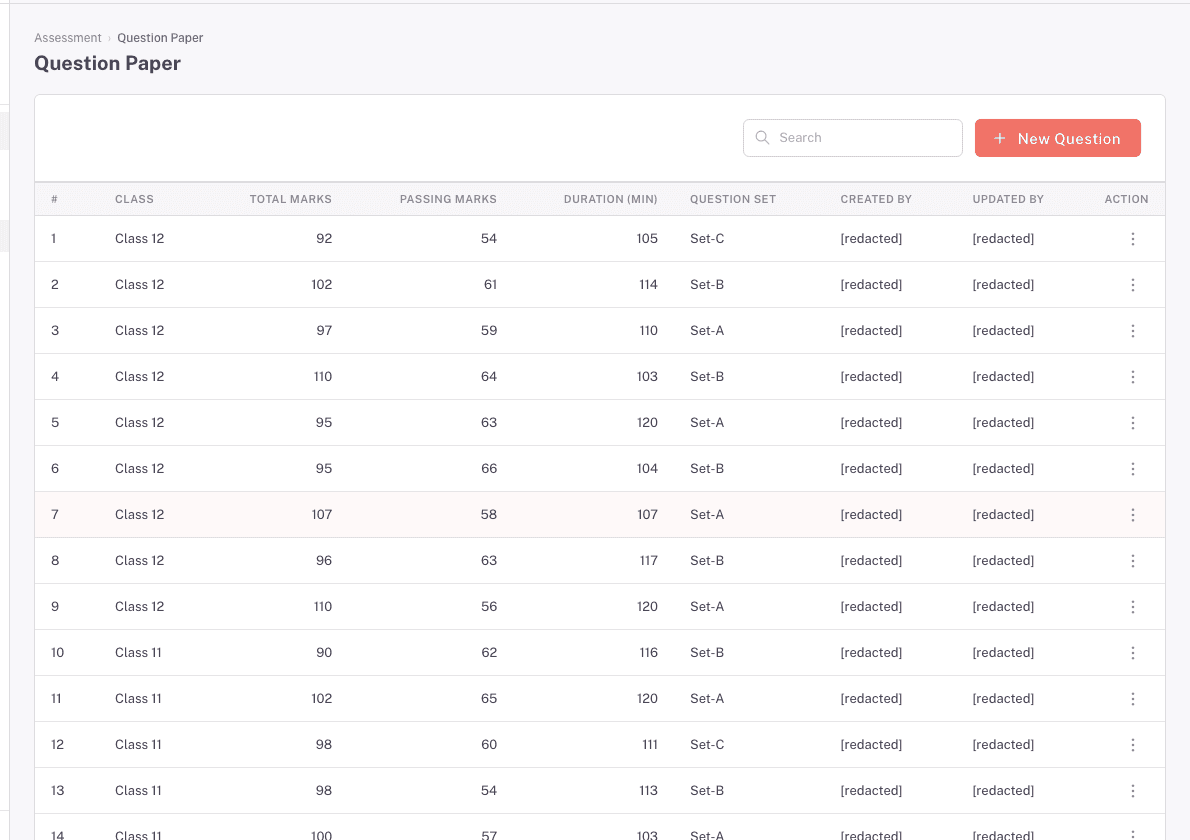
The list shows one row per paper, with Class, Total Marks, Passing Marks, Duration (Min), Question Set, Created By, and Updated By. Use the search box to narrow it.
Printing a question paper
Click Print on the row. The PDF opens in a new browser tab.
If nothing opens, your browser blocked the pop-up. Allow pop-ups for the FEMS site and click Print again.
Deleting a question paper
Click the delete icon on the row and confirm. The dialog shows the class, set, and who created and last updated it, so you can check you're deleting the right one.
What the marks fields actually do
This is worth understanding before test day, because it's easy to assume more automation than there is.
- Mark is the paper's total. Passing Marks is the mark you consider a pass.
- Passing Marks is recorded on the paper, but it does not decide the result. When you score an applicant, you choose Eligible or Not Eligible yourself. FEMS stores your choice as-is.
- So Passing Marks is a reference number for whoever is scoring, not an automatic pass/fail rule.
Because FEMS doesn't apply the passing mark for you, two people scoring the same paper can reach different results. Agree the rule in your office, and check the applicant's mark against Passing Marks before you pick Eligible or Not Eligible.
Troubleshooting
Uploads for one class keep failing with "Error creating question paper." Check whether that class already has a Set-Z for this academic year. Once it does, no further paper can be added, and the message does not say so. Deleting papers will not help, because the next letter comes from the highest set name the class has, not from a count. Raise it with support if the class genuinely needs more than 26 papers.
The upload fails, or the file "did not upload". Check the file is a PDF and 2 MB or smaller. If it keeps failing on a valid file, the storage upload is failing rather than the form, so contact support.
Nothing happens when I click Process. The upload may still be running. FEMS blocks a second submit while a file is uploading. Wait a moment and watch for the confirmation.
The Print link opens the wrong PDF, or a missing one. Report it. FEMS requires a real uploaded file on every paper, so a wrong or dead PDF means the row predates that rule or the upload failed silently.
I deleted a paper but I'm not sure it worked. Refresh the list and check. The delete always reports success, including when the row was already gone. If the row is still listed after a refresh, the delete didn't take effect, so contact support.
I don't see the New Question button. You don't have Add Question Paper access. The delete icon is gated separately, so you may be able to add without being able to delete. Ask an admin.
I need to fix a mistake on a paper. There's no edit. Delete the paper and upload the corrected one. If you delete the highest existing set, the replacement reuses that letter. If you delete an earlier set, the replacement uses the letter after the highest remaining set.
FAQ
Do I need a separate paper for every class?
Yes, papers are held per class. Be aware that the scoring screen's Questions Set list is not filtered to the applicant's class: it lists every class's papers, labelled set then class name, such as Set-A - Class 6. Read the class in the label before you pick, or you can score an applicant against another class's paper.
Can I reuse last year's paper? Set names count per class per academic year, so a new year starts again at Set-A. Upload the paper again for the new year.
Who can see the question paper? Anyone who can reach the Question Paper screen can print it. Treat access to this screen the way you'd treat the physical papers.
What happens to applicants already scored against a paper I delete? Their recorded mark and result stay on their record. Deleting the paper doesn't undo scoring.