Salary and payslips in Self Care
View and print your payslips and submit salary-related applications like advances.
Self Care's Salary & Payslips page shows your monthly payslips and lets you apply for a payroll loan or advance against your salary.
Prerequisites
Any employee (teacher or staff) can open this page. You don't need a special permission. Just sign in to FEMS and go to Self Care > Salary & Payslips.
What you'll find on this page
The page has 2 tabs: Payslips and Applications.
Payslips
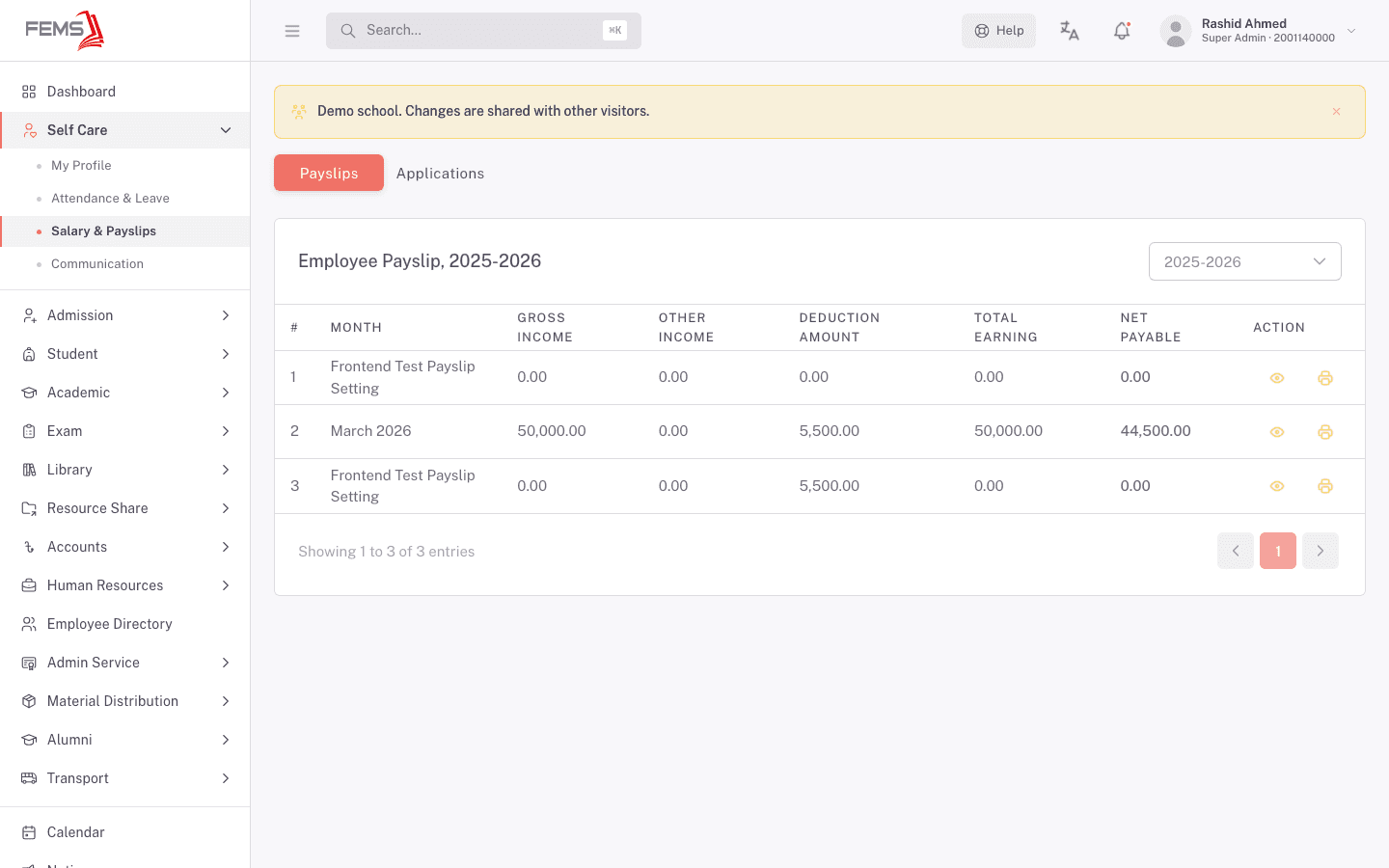
This tab lists a payslip for each month your school has run payroll, for the academic year shown in the dropdown at the top right.
The table shows, for each month: gross income, other income, deduction amount, total earning, and net payable.
- Pick the academic year from the dropdown if you need an earlier year's payslips.
- Click the eye icon next to a month to View the full payslip.
- Click the printer icon to Print that month's payslip.
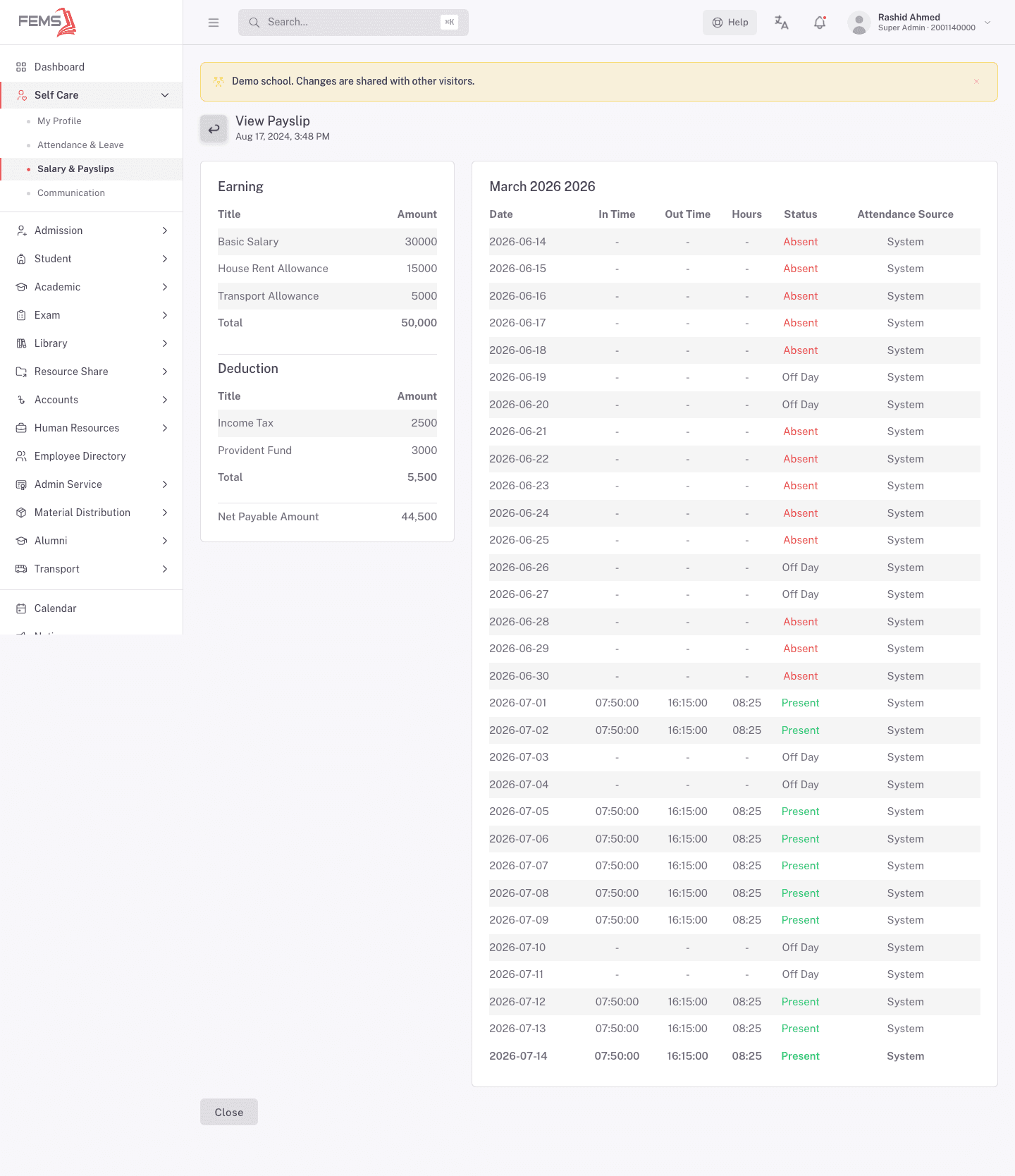
Opening a payslip shows the full breakdown:
- Earning: each earning line (for example Basic Salary, House Rent Allowance, Transport Allowance) and the total.
- Deduction: each deduction line (for example Income Tax, Provident Fund) and the total.
- Net Payable Amount: what you actually received.
- Your attendance record for the pay period, day by day, so you can see how it fed into the payslip.
Click Close to return to the list.
Applications
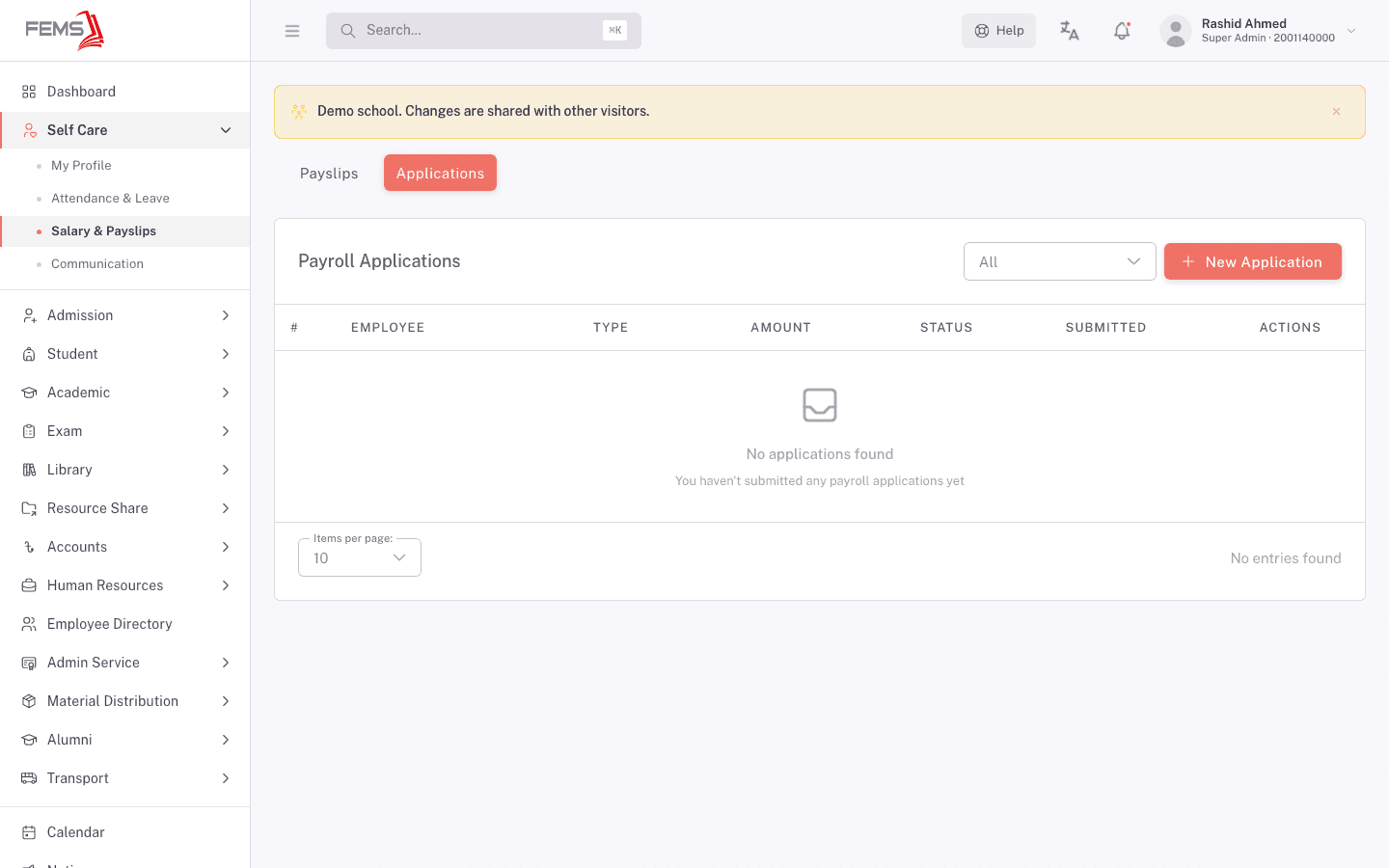
Use this tab to apply for a salary advance.
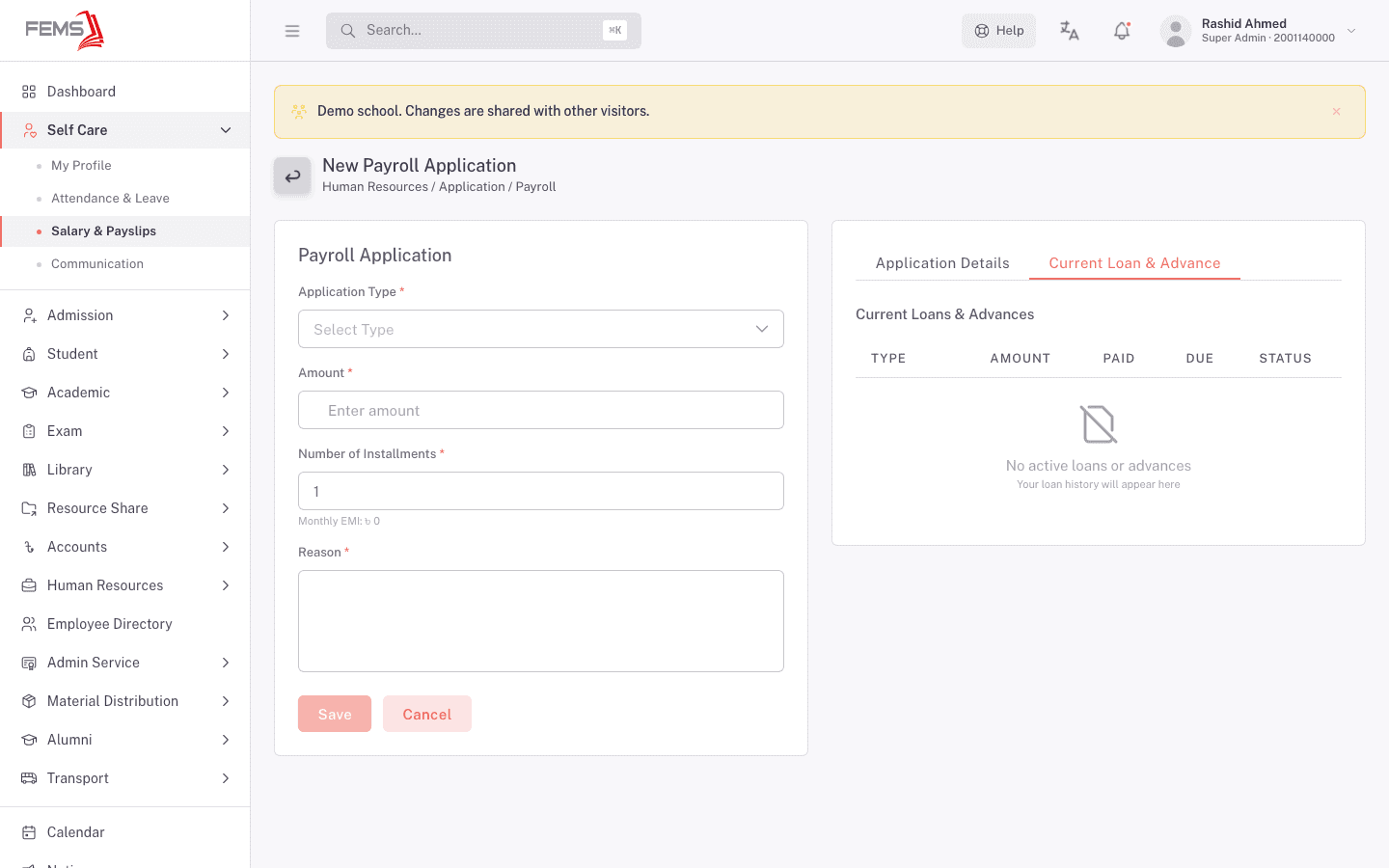
- Open the Applications tab. A table lists your submitted payroll applications, with employee, type, amount, status, and submission date.
- Click New Application.
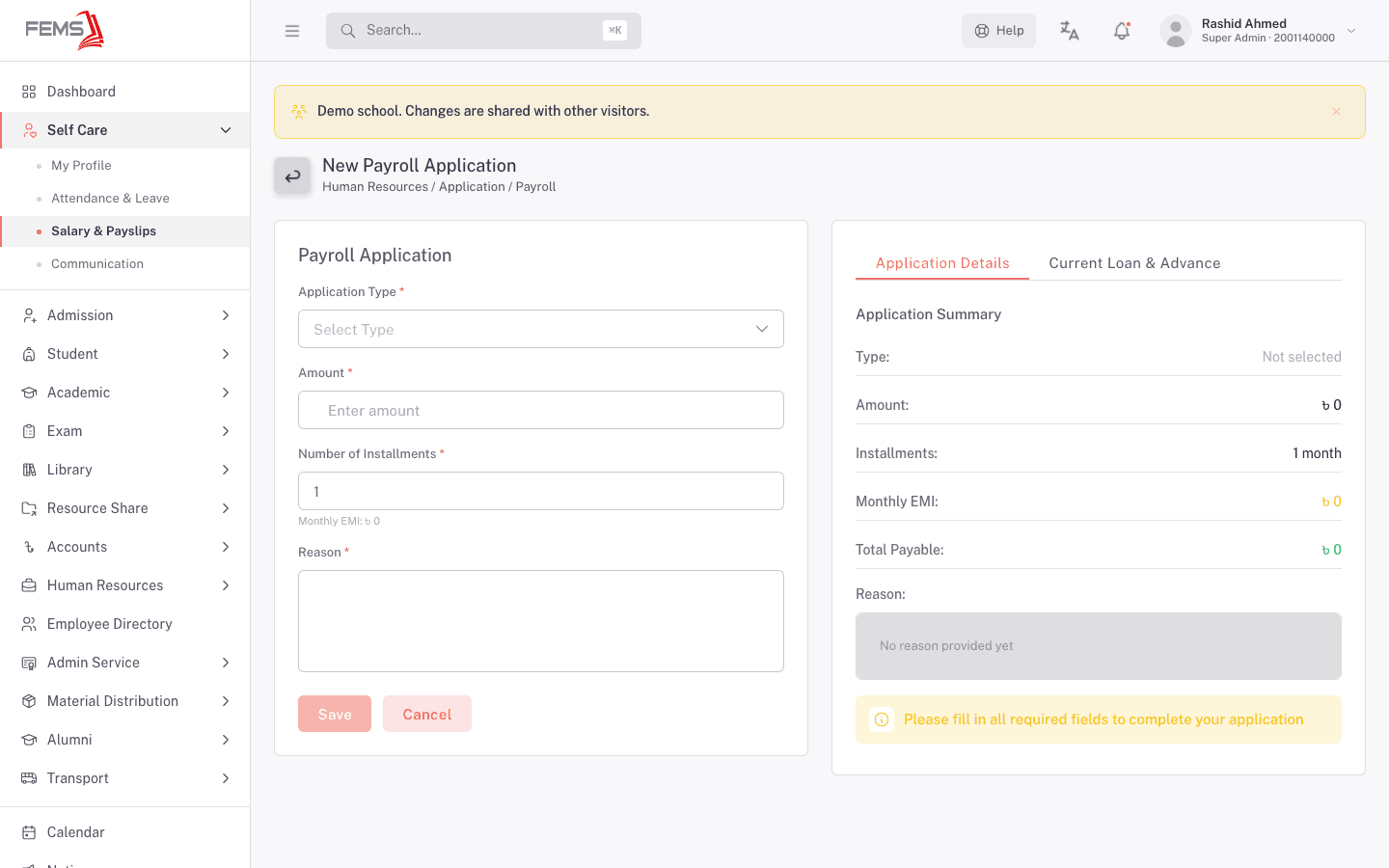
- Pick an Application Type. At the time of writing, Loan is the only type offered.
- Enter the Amount you're requesting.
- Enter the Number of Installments you want to repay it over. FEMS calculates your Monthly EMI as you type.
- Write your Reason.
- Click Save.
The Application Details panel beside the form keeps a running summary as you fill it in: type, amount, installments, monthly EMI, total payable, and reason. Switch to the Current Loan & Advance tab in that same panel to see any loans or advances you already have open, with what you've paid and what's still due.
FAQ
Why do some months show 0.00 in every column? Your school hasn't finalized payroll for that month yet, or it's a placeholder row created during setup. Only months with real figures reflect what you were paid.
Can I request an advance for any amount? You can enter any amount in the application form, but your HR admin approves the final amount and repayment terms.
How is the Monthly EMI calculated? FEMS divides your requested amount by the number of installments you choose. Increasing the installment count lowers the monthly amount but stretches out the repayment period.
Where do the deduction lines on my payslip come from? Deductions like income tax and provident fund are set up by your school's HR and payroll team as part of your salary structure. Contact HR if a deduction on your payslip looks wrong.
Can I print a payslip for a previous academic year? Yes. Pick the year from the dropdown at the top of the Payslips tab, then use the print icon on the month you need.