Attendance and leave in Self Care
Check your attendance history and submit attendance correction or leave requests.
Self Care's Attendance & Leave page shows your own daily attendance record and lets you apply for an attendance correction or a leave of absence.
Prerequisites
Any employee (teacher or staff) can open this page. You don't need a special permission. Just sign in to FEMS and go to Self Care > Attendance & Leave.
What you'll find on this page
The page has 3 tabs: My Attendance, Attendance Applications, and Leave Applications.
My Attendance
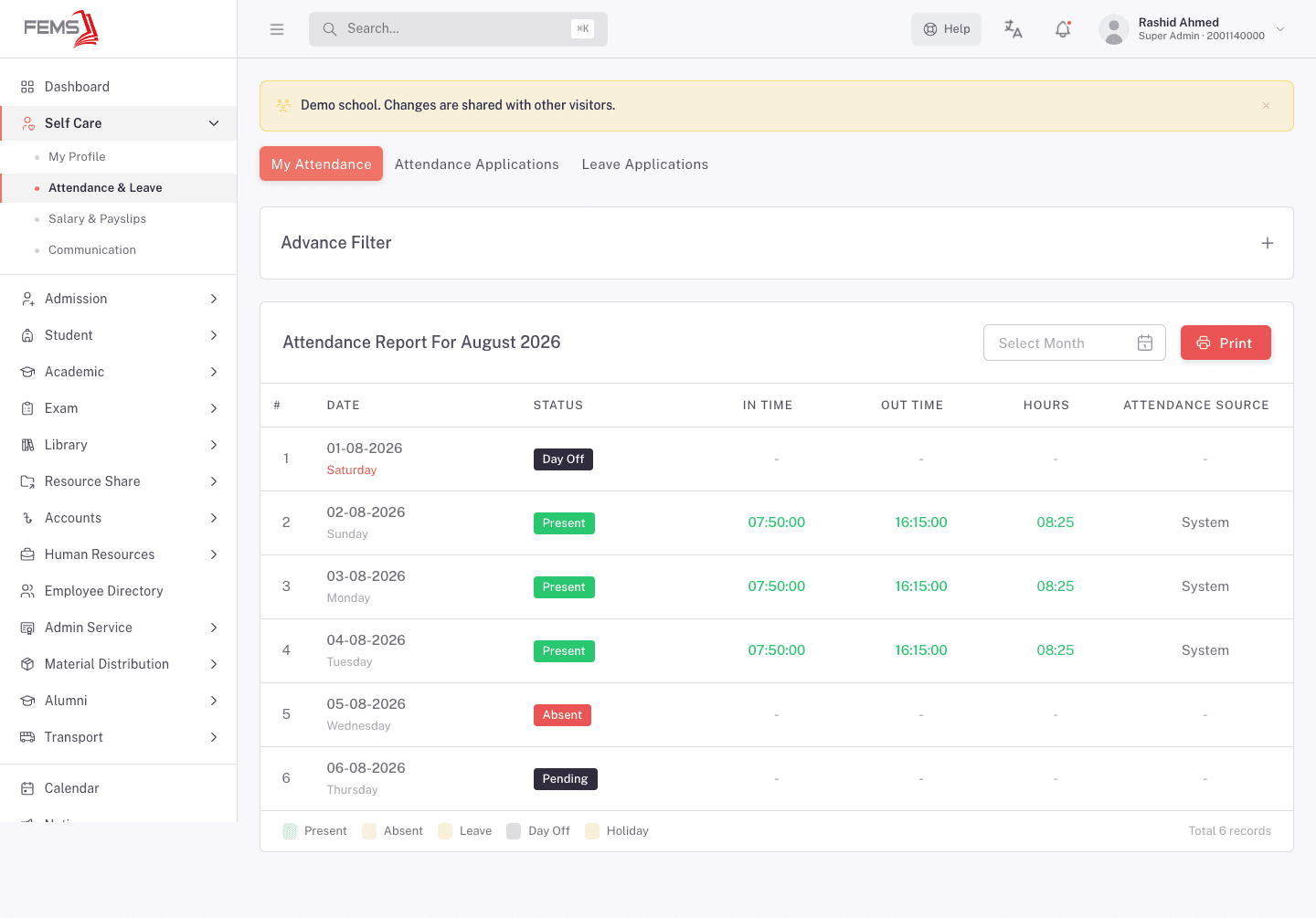
This tab shows a day-by-day attendance report for the month you pick.
- Use the month dropdown (for example, August) to pick the month you want to see.
- Read the table: each row shows the date, day of the week, status (Present, Absent, Leave, Day Off, or Pending), your in-time and out-time, hours worked, and the source that recorded it (usually System, meaning a face-recognition camera or check-in device).
- Click Print to print the report.
Attendance Applications
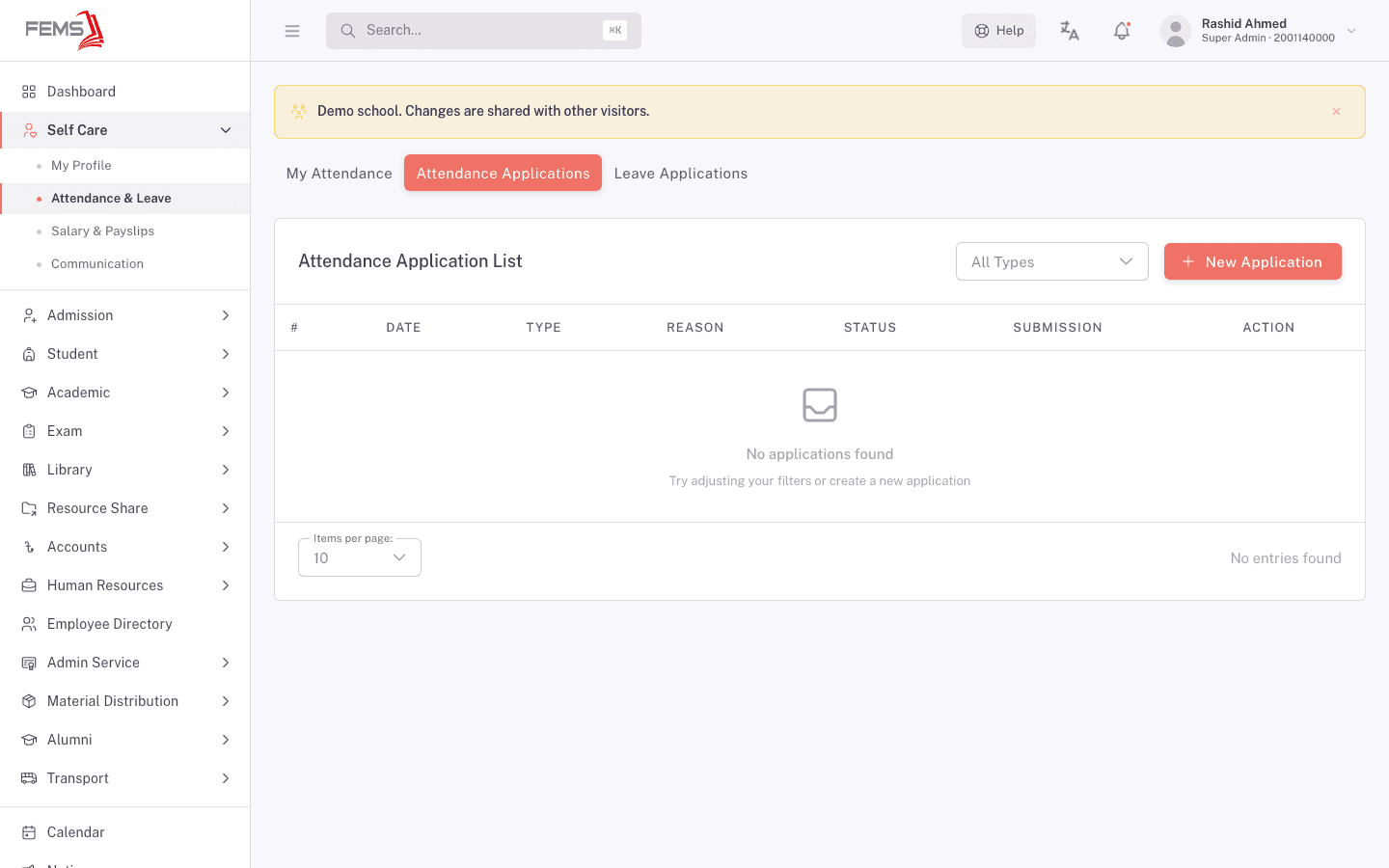
If a day's record is wrong, missing, or you arrived late or left early for a reason, use this tab to submit a correction.
- Open the Attendance Applications tab. A table lists any applications you've already submitted, with their type, reason, status, and submission date.
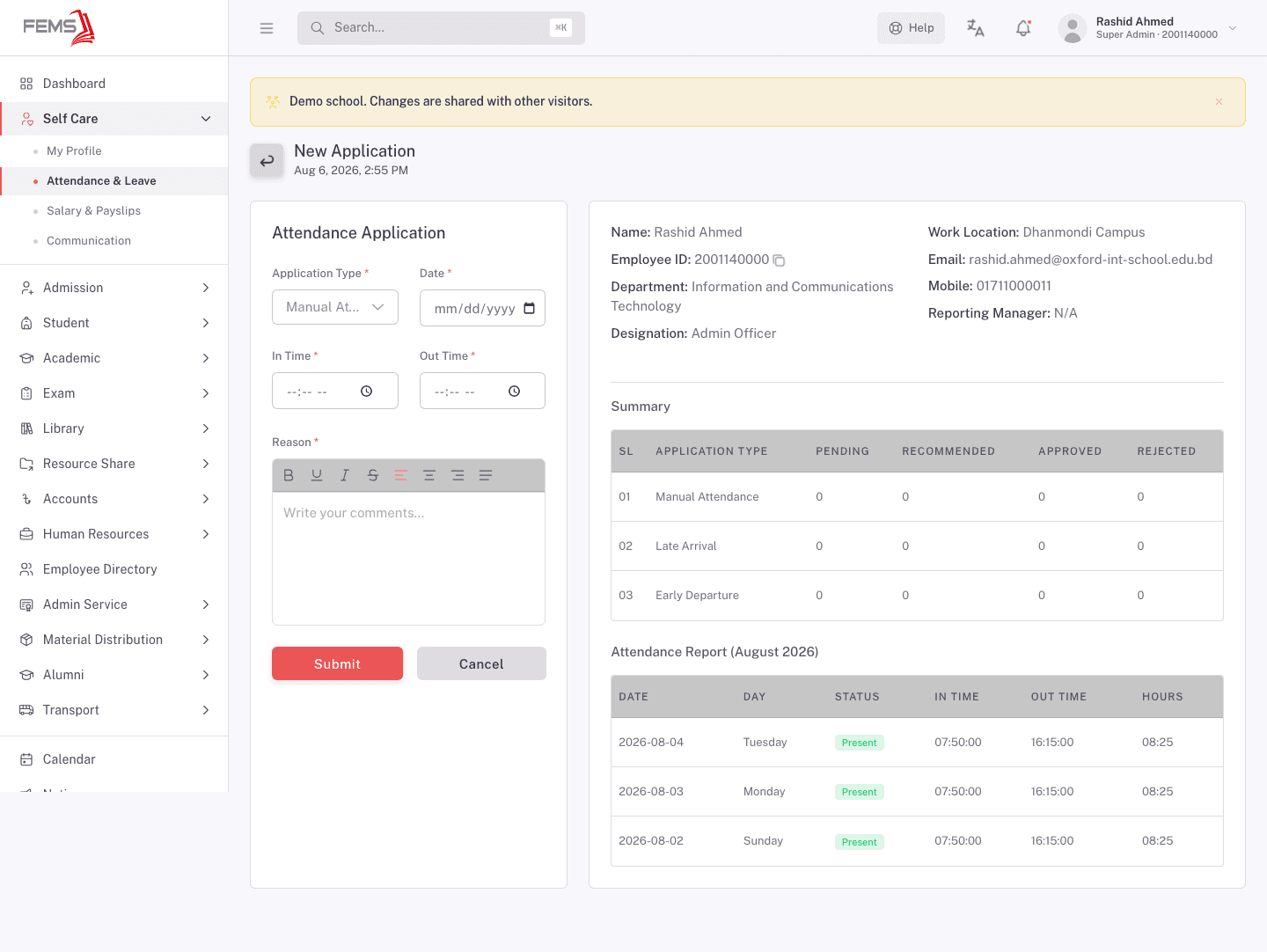
- Click New Application.
- Pick an Application Type: Manual Attendance (add a missing in/out record), Late Arrival, or Early Departure.
- Pick the Date the correction applies to.
- Fill in In Time and Out Time.
- Write your Reason.
- Click Submit.
The sidebar on this page shows your basic employee details and a running summary of how many of your applications are Pending, Recommended, Approved, or Rejected, broken down by type.
Leave Applications
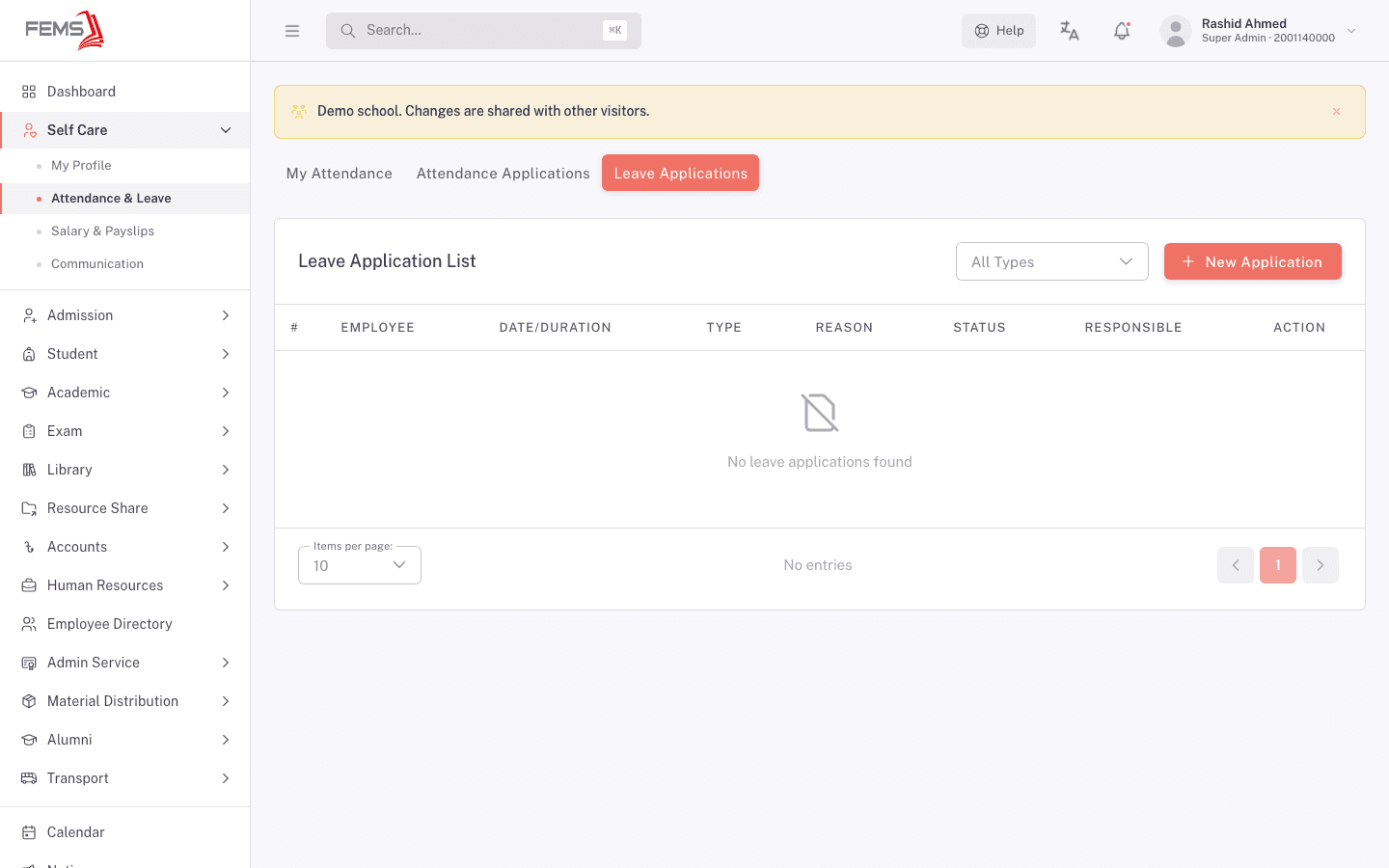
Use this tab to apply for time off.
- Open the Leave Applications tab. A table lists any leave applications you've already submitted.
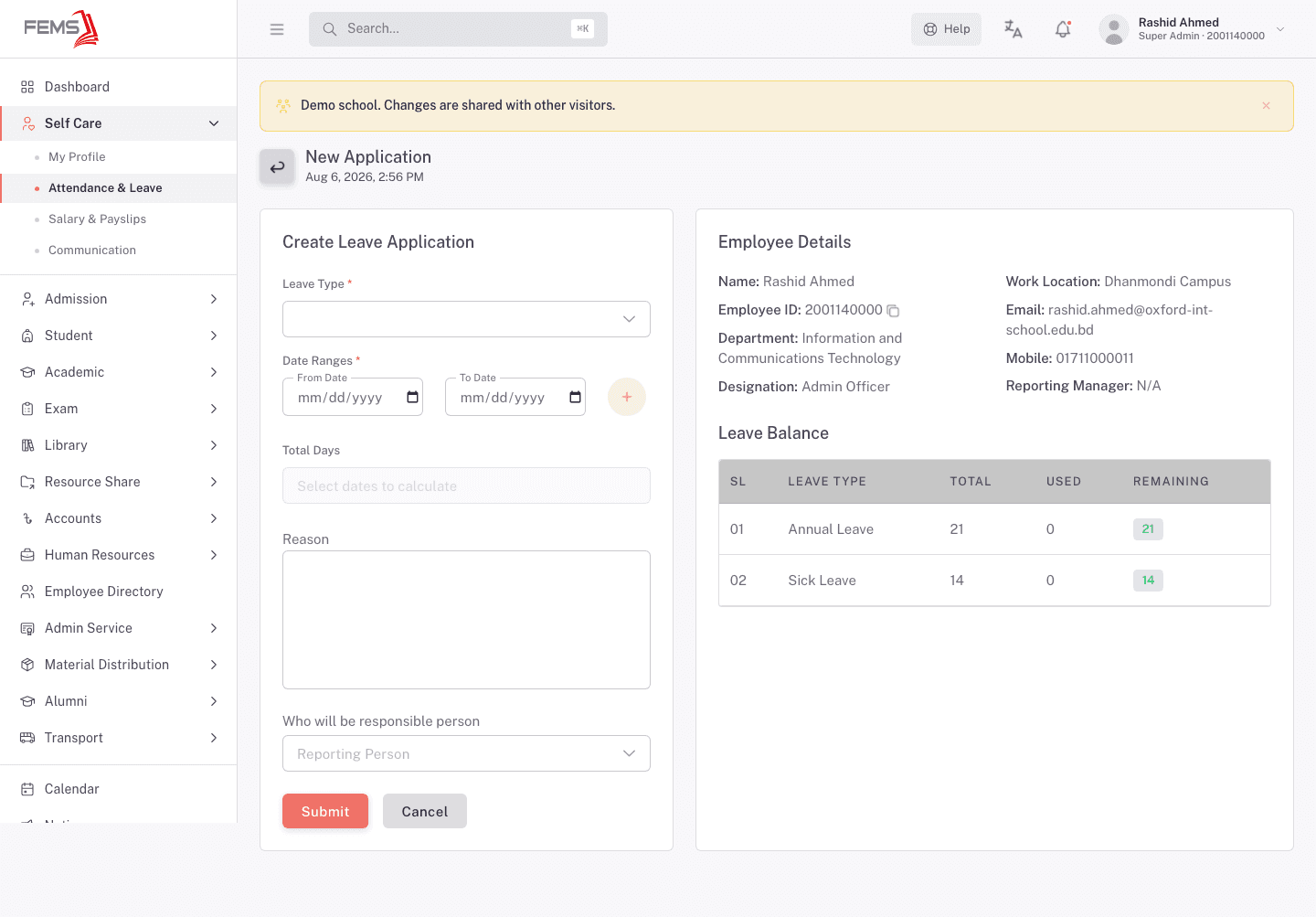
- Click New Application.
- Pick a Leave Type (for example, Annual Leave or Sick Leave).
- Pick a From Date and To Date. FEMS calculates Total Days for you.
- Write your Reason.
- Pick Who will be responsible person to cover for you while you're away, if your school asks for this.
- Click Submit.
The sidebar shows your Leave Balance: how many days of each leave type you have in total, how many you've used, and how many remain.
FAQ
What's the difference between an attendance application and a leave application? An attendance application corrects or explains a specific day's check-in record, for example a manual entry, a late arrival, or an early departure. A leave application requests one or more full days off in advance.
Can I edit or cancel an application after I submit it? The Attendance Applications and Leave Applications tabs list your submitted applications, but this pass didn't confirm the exact edit and cancel options available once an application is pending.
Who approves my applications? Your school's HR admin, or whoever your institution has set up to review attendance and leave requests.
Why does my leave balance show 0 used even though I've taken leave before? Leave balances are set up per academic year by your school's HR team. If a balance looks wrong, request a correction through your HR admin rather than through Self Care.
Does the attendance shown here include face-recognition check-ins? Yes. The Attendance Source column on the My Attendance tab shows System for check-ins recorded automatically, for example by a face-recognition camera or check-in device.