Communication in Self Care
Read notices and SMS messages sent to you.
Self Care's Communication page lets you check the text messages your school has sent to your mobile number and read notices posted on the school notice board.
Prerequisites
Any employee (teacher or staff) can open this page. You don't need a special permission. Just sign in to FEMS and go to Self Care > Communication.
What you'll find on this page
The page has 2 tabs: Messaging (SMS) and Notice Board.
Messaging (SMS)
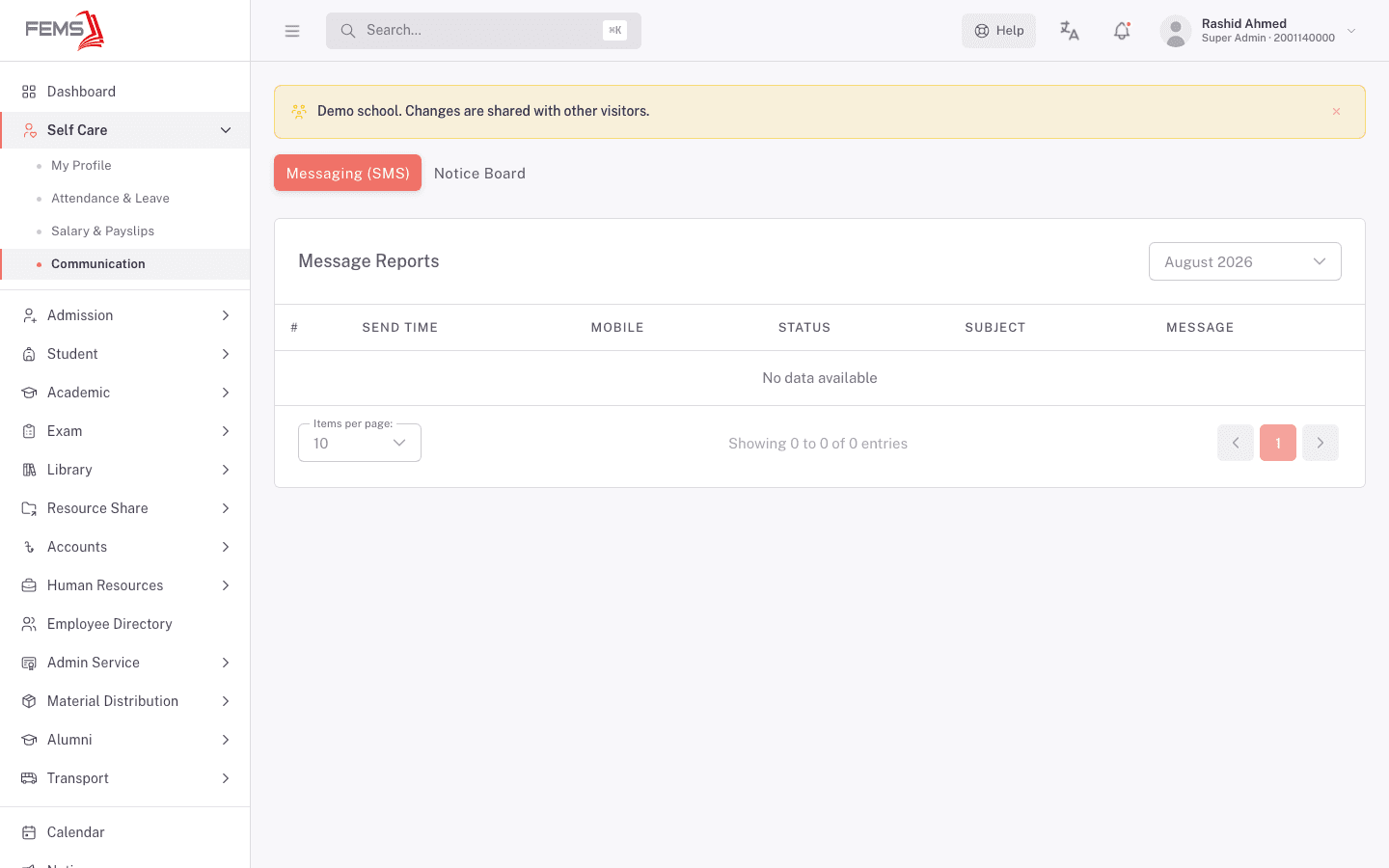
This tab shows a Message Reports table of the SMS messages your school has sent to your mobile number, for the month you pick.
- Use the month dropdown (for example, August 2026) to pick the month you want to see.
- Read the table: send time, mobile number, delivery status, subject, and message text.
If your school hasn't sent you any SMS that month, the table shows "No data available".
Notice Board
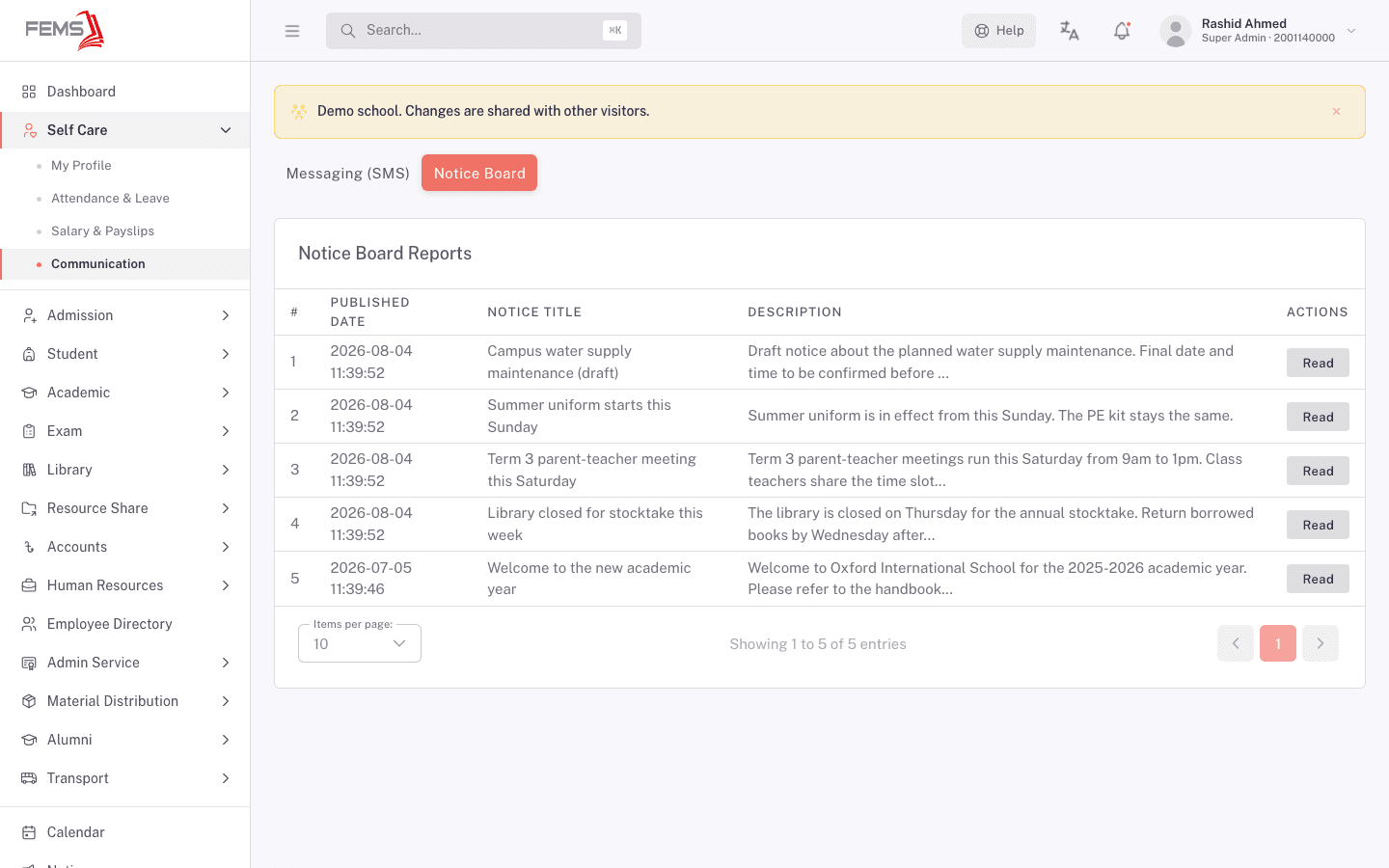
This tab lists notices your school has posted, most recent first.
- Open the Notice Board tab. Each row shows the published date, notice title, and a short preview of the description.
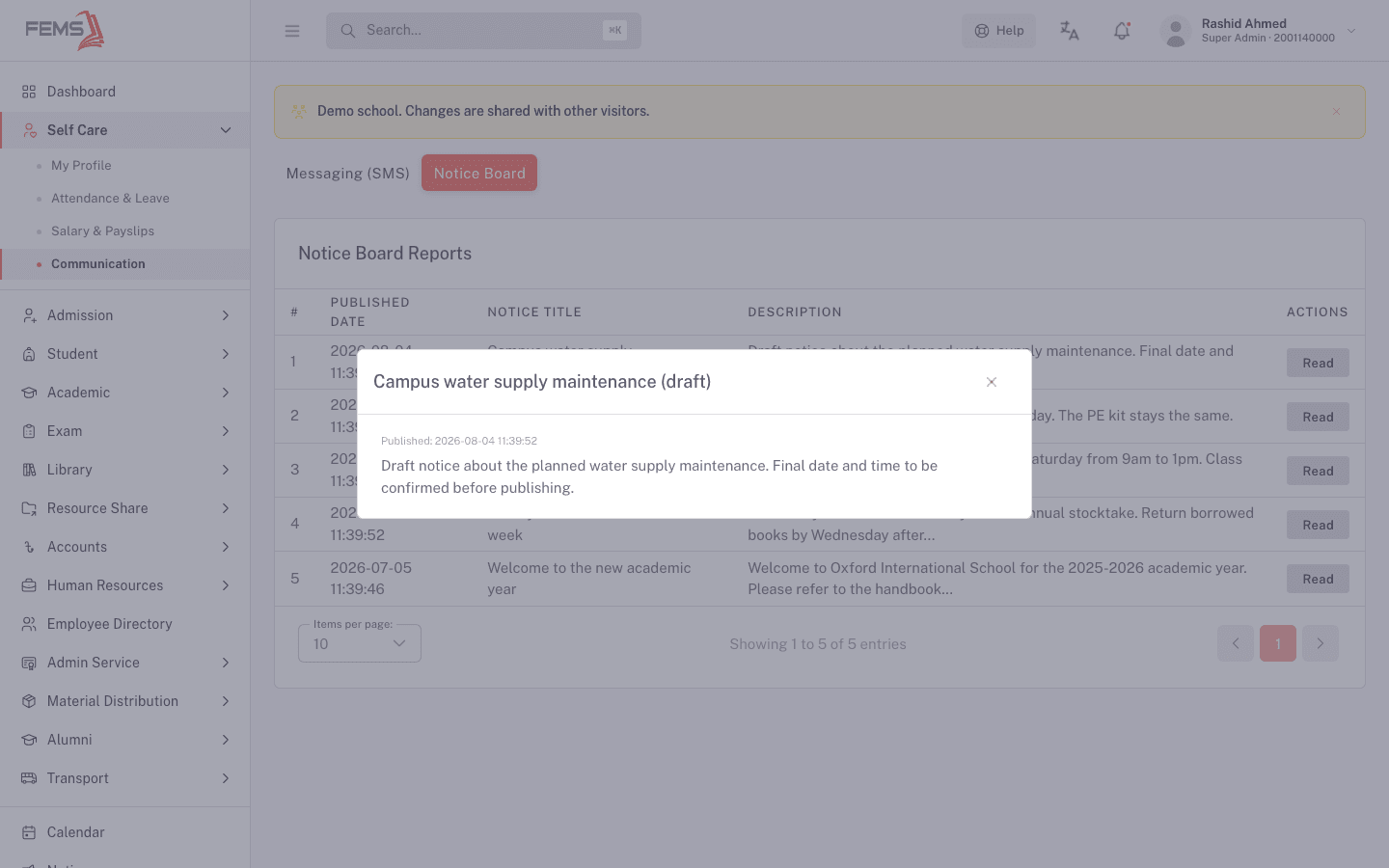
- Click Read on a notice to open its full text.
FAQ
Why don't I see any SMS for the current month? Your school only sends SMS for specific events, like fee reminders or attendance alerts. If nothing triggered a message this month, the list is empty. Pick a different month from the dropdown to check earlier activity.
Can I reply to an SMS or a notice from this page? No. Both tabs are read-only. If you need to respond, contact your school office directly.
Who can post a notice I'd see here? Admin or office staff with notice-posting access. See Posting and printing notices for how notices get created.
Does this page show notices meant for students or parents too? The Notice Board tab shows notices your school has targeted at employees. Notices aimed only at students or parents may not appear here.