Your profile in Self Care
View your personal, employment, and contact details, track your update requests, and change your password.
Self Care's My Profile page is where you see your own HR record, review your sign-in history, ask for a change to a field you cannot edit yourself, and change your password.
Prerequisites
Any employee (teacher or staff) can open this page. You don't need a special permission. Just sign in to FEMS and go to Self Care > My Profile.
What you'll find on this page
My Profile has 5 tabs: Employee Info, Records, Activity, Update Requests, and Change Password.
Employee Info
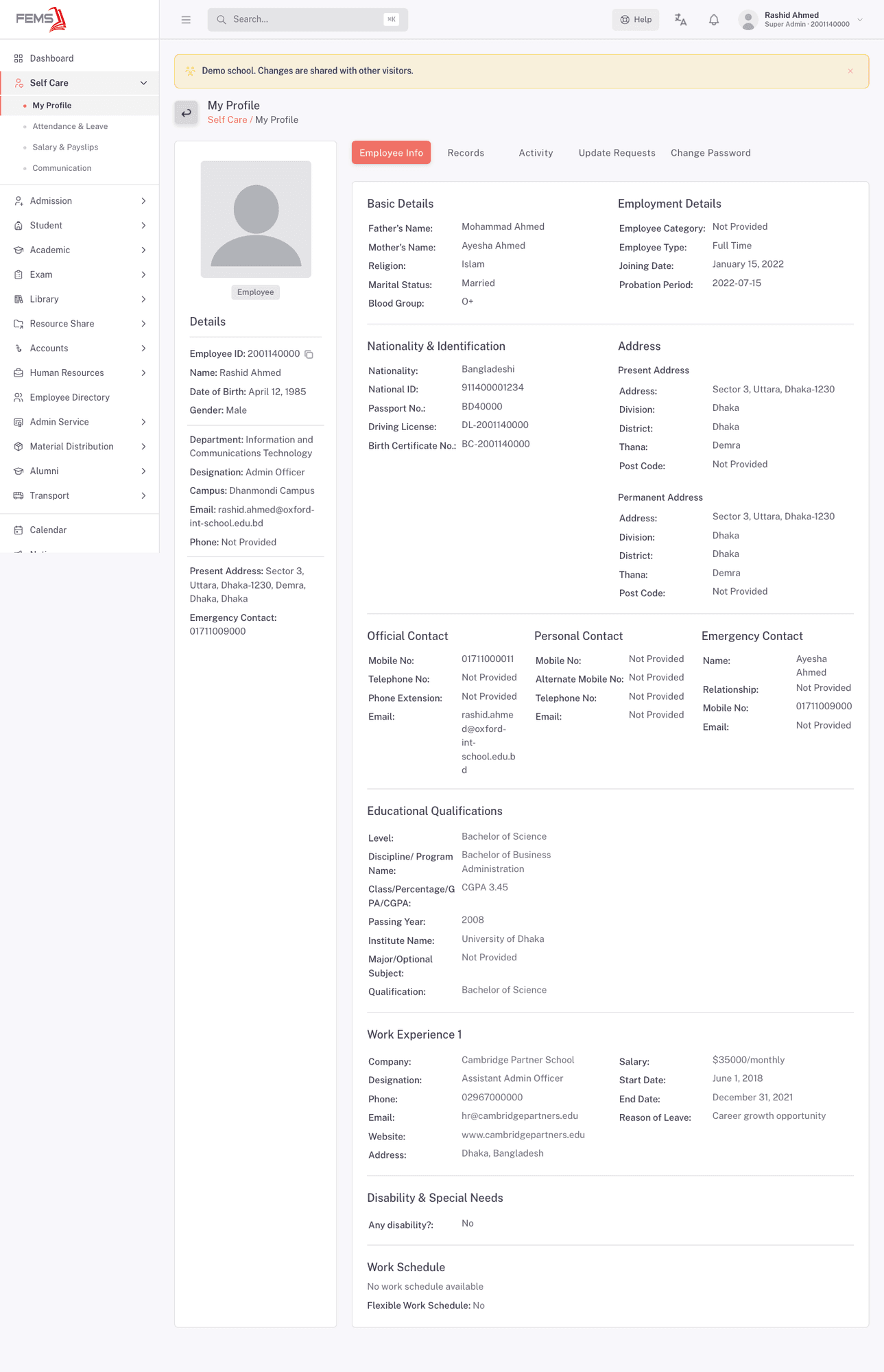
This tab shows your full HR record as read-only text. It's grouped into sections:
- Basic Details: father's and mother's name, religion, marital status, blood group.
- Employment Details: employee category, employee type, joining date, probation period.
- Nationality & Identification: nationality, national ID, passport, driving license, birth certificate.
- Address: your present and permanent address.
- Official Contact and Personal Contact: mobile, telephone, and email for each.
- Emergency Contact: name, relationship, mobile, and email.
- Educational Qualifications: degree level, institute, passing year, and grade.
- Work Experience: past employer, designation, and dates, if your school recorded any.
- Disability & Special Needs and Work Schedule.
Fields your school hasn't recorded yet show as "Not Provided".
Records
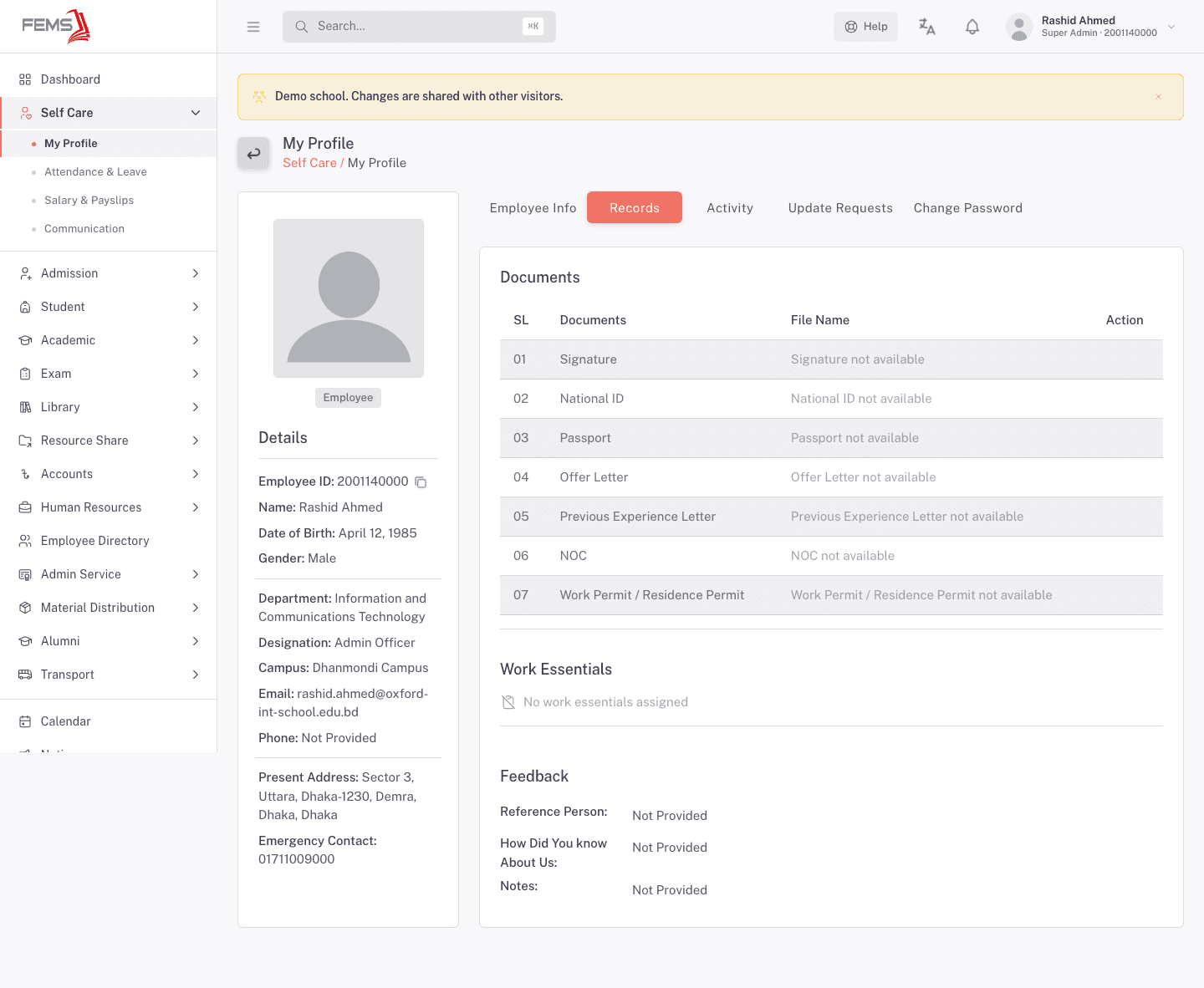
This tab lists documents your school holds on file for you (signature, national ID, passport, offer letter, and similar), any work essentials assigned to you (like a laptop or uniform), and feedback notes from your hiring process. A document shows "not available" if your school hasn't uploaded it.
Activity
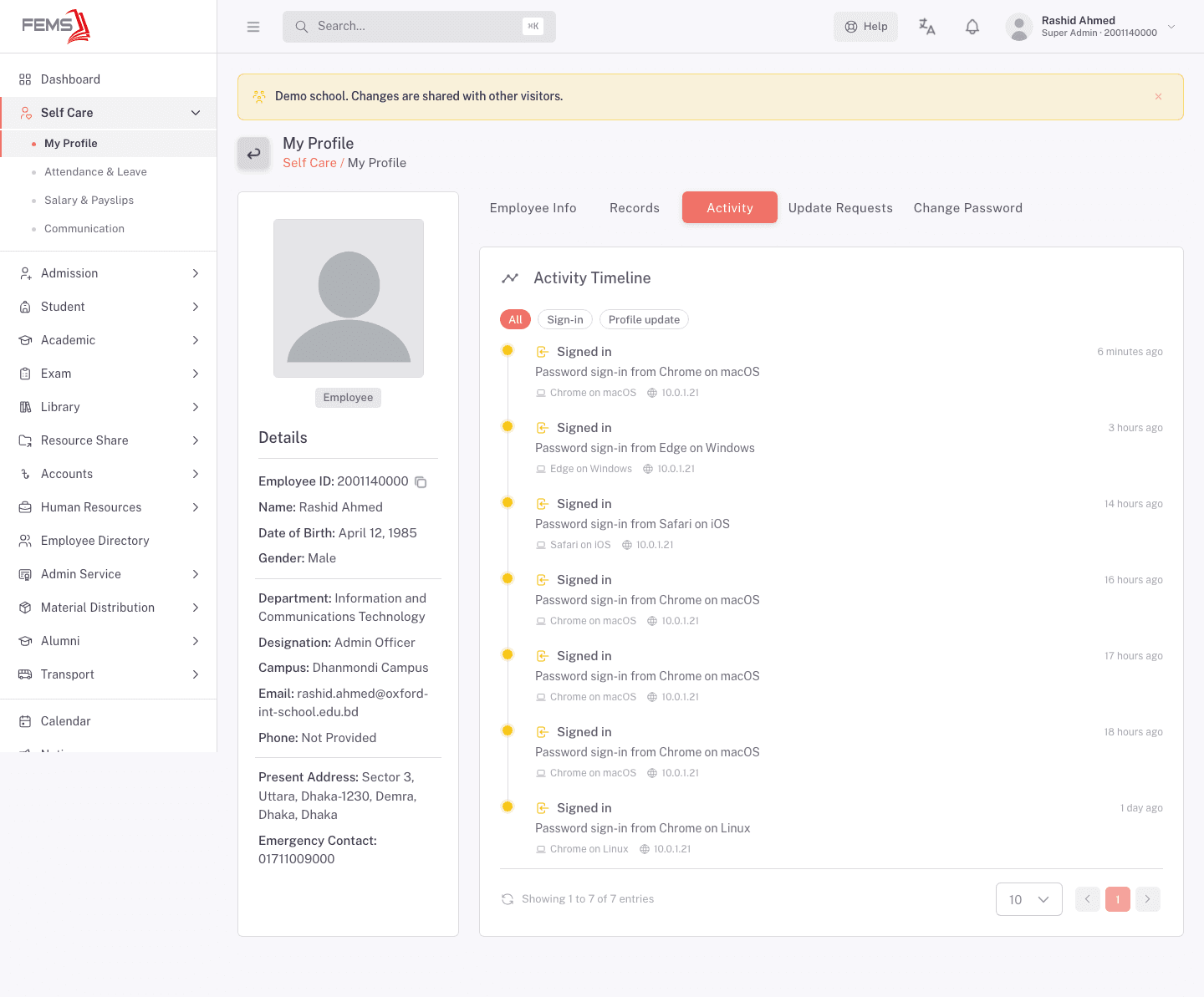
This tab shows a timeline of your account activity: sign-ins (with device and browser) and profile updates. Use the All, Sign-in, and Profile update filters above the timeline to narrow the list.
Update Requests
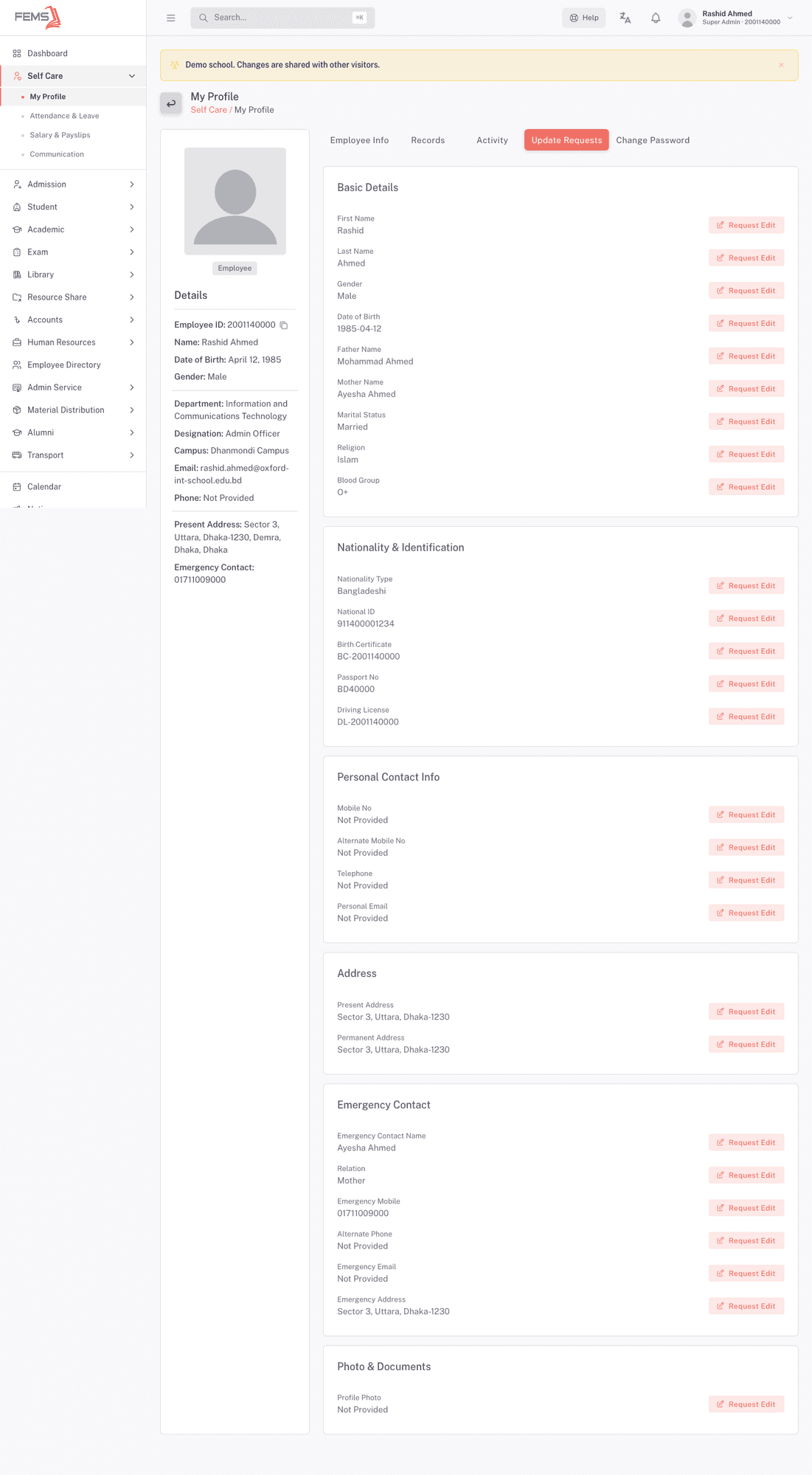
Most of your HR record is admin-managed, so you can't edit it directly. Instead, this tab lets you request a change to a specific field. An admin then reviews and approves or rejects it.
To request a change:
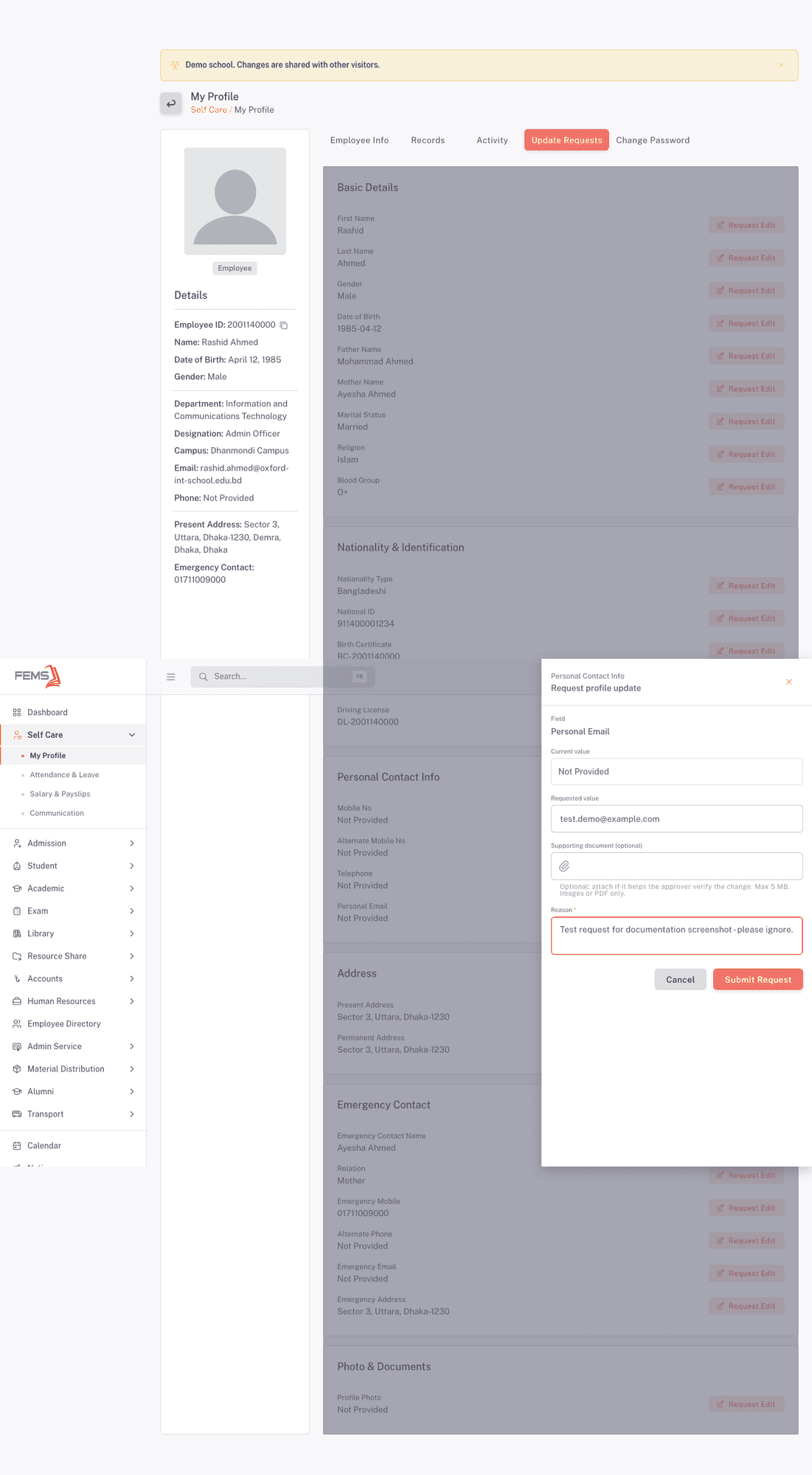
- Open the Update Requests tab. Every field is listed with its current value and a Request Edit button.
- Click Request Edit next to the field you want changed. A form opens showing the field name and its current value.
- Type the new value in Requested value.
- Optionally attach a Supporting document (images or PDF only, max 5 MB) to help the approver verify the change.
- Type a Reason for the change. This is required.
- Click Submit request.
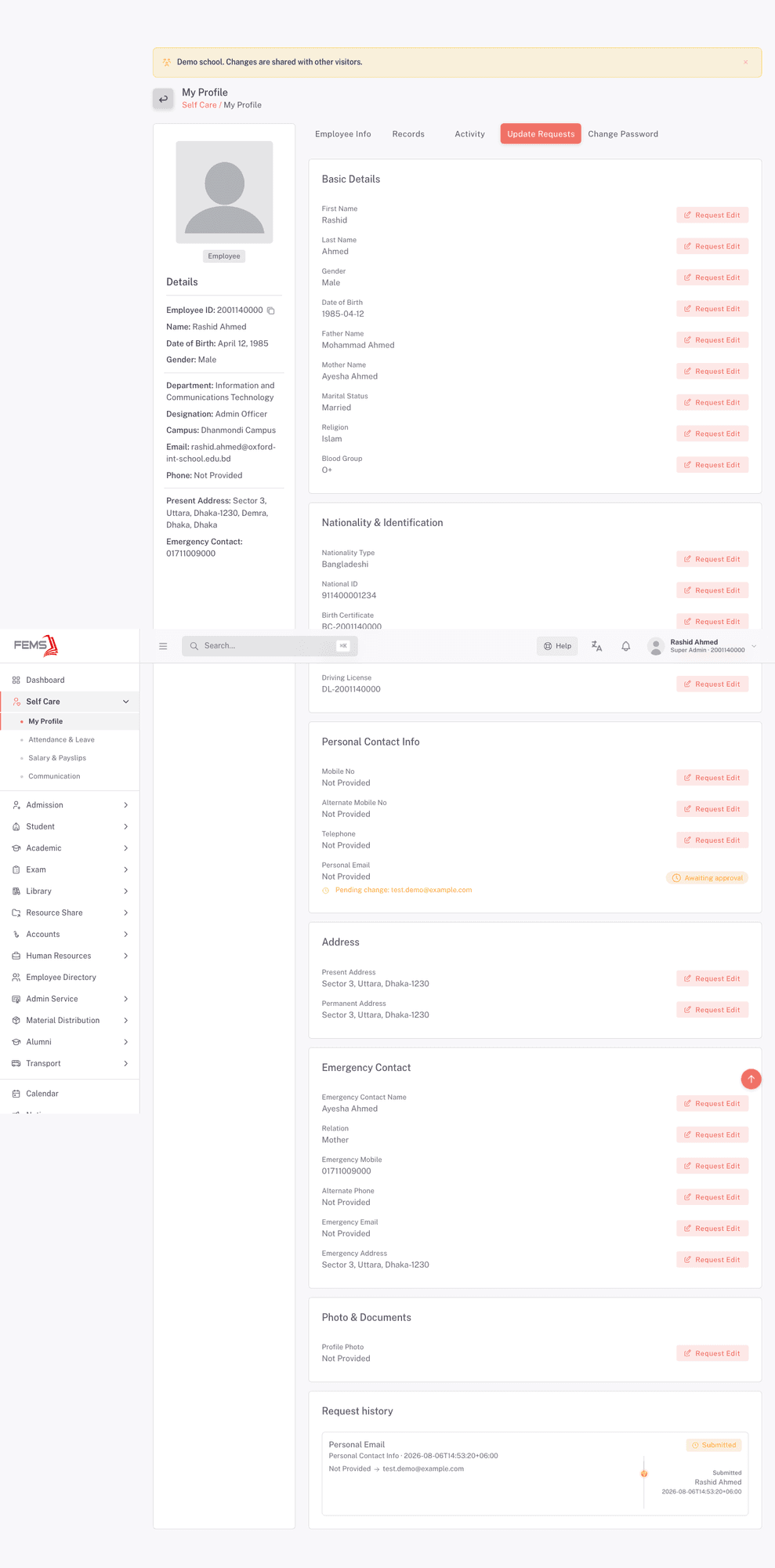
You'll see the field's row update with an Awaiting approval badge and the pending value shown underneath it. A new entry also appears in the Request history section at the bottom of the tab, showing what you requested, when, and its current status.
Change Password
Use this tab to change your own sign-in password.
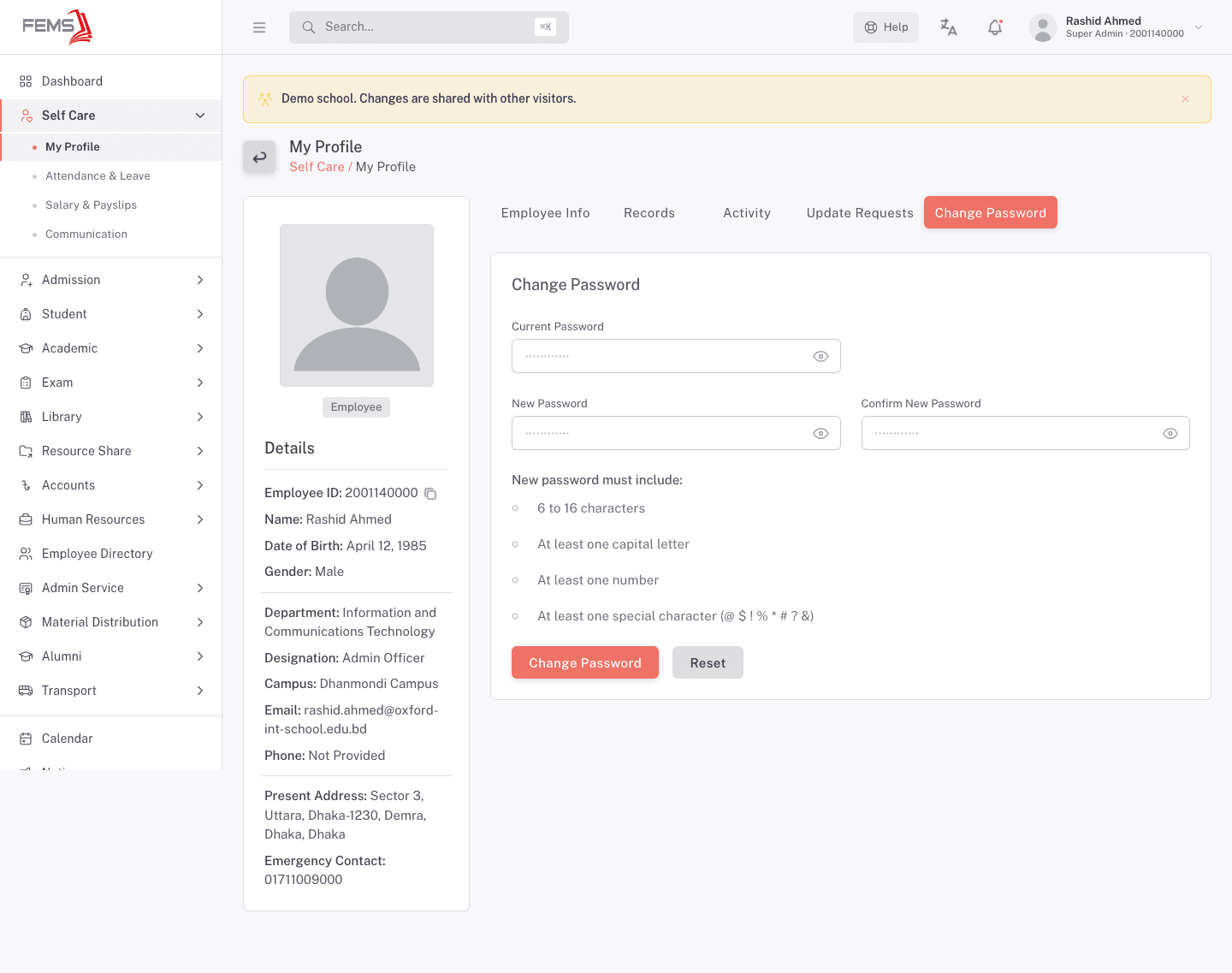
- Open the Change Password tab.
- Type your Current Password.
- Type a New Password. It must be 6 to 16 characters, include at least one capital letter, at least one number, and at least one special character (
@ $ ! % * # ? &). - Retype the same value in Confirm New Password.
- Click Change Password.
Click Reset at any point to clear the form and start over.
FAQ
Can I edit my profile details directly? No. Most of your HR record is admin-managed. Use Request Edit on the Update Requests tab to ask for a change, and an admin will review it.
What happens after I submit an update request? The field shows an Awaiting approval badge with your requested value, and the request appears in Request history with a status. An admin needs to approve it before the change takes effect.
Do I need to attach a supporting document with every update request? No, it's optional. Attach one only if it helps the approver confirm the change, such as a scanned ID for a name correction.
Why do some fields show "Not Provided"? Your school hasn't recorded that detail yet. Request an edit to add it, the same way you would request a change to an existing value.
Can I see who signed in to my account and from where? Yes. The Activity tab lists sign-ins with the device, browser, and approximate time. If you see a sign-in you don't recognize, change your password right away from the Change Password tab.