Using your notification inbox
Read and manage your personal in-app notifications.
Notifications bring your FEMS updates into one personal inbox. Your unread count appears beside the bell in the top bar.
Before you start
- Sign in to your own FEMS account.
- Remember that your inbox is personal. Different roles receive different updates.
Check recent notifications
- Select the Notifications bell in the top bar.
- Check the unread count beside Notifications.
- Review the latest item in the drawer. Each item shows a title, short message, and relative time.
- Select View All Notifications to open the full inbox.
Use the full inbox
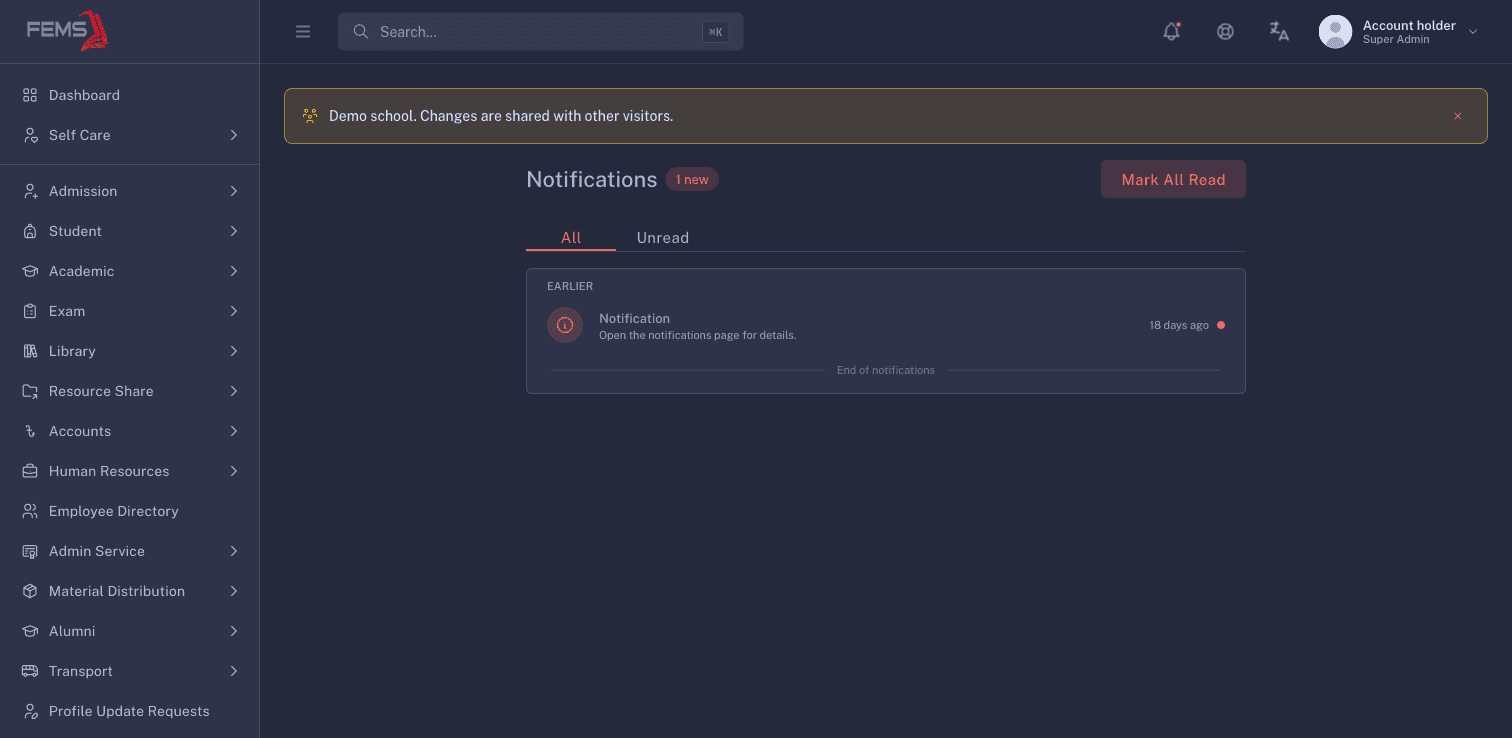
The Notifications page gives you two views:
- All shows read and unread notifications.
- Unread shows only notifications you have not read.
Older notifications appear under Earlier. The list shows End of notifications after its oldest item.
Manage unread reminders
Select Mark All Read only when you no longer need the unread reminders. This changes every unread notification in your inbox at once.
Frequently asked questions
Why does the bell still show an unread count?
Open the full inbox and select Unread. Review the items there, or use Mark All Read if you no longer need any unread reminders.
Why is my inbox empty?
Select All. If the list stays empty, no notification history is available for this account.
Can another person see my notifications?
The inbox belongs to the account that is signed in. Sign out when you finish using a shared computer.